Appearance
Pixie: change the output resolution
If you've connected a Lumicast Pixie to a screen and want to change the output resolution (e.g. from 1920×1080 to 3840×2160), you can configure this on the Pixie itself. Higher resolutions look sharper but demand more processing power — match the resolution to your screen and use case.
What you'll need
- A USB keyboard
- A USB mouse
Steps
1. Connect the keyboard
Attach a USB keyboard to the Pixie.
2. Open display settings
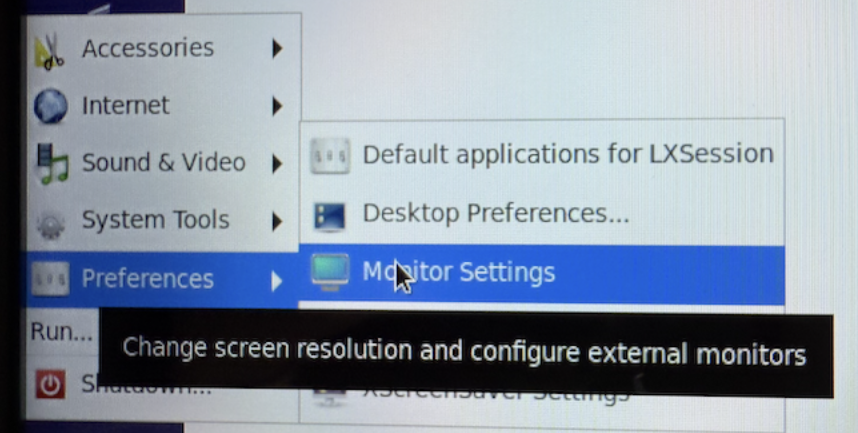
Press the Windows key (or Cmd on Mac keyboards). A menu appears in the bottom-left corner. Navigate to Preferences > Monitor Settings:
3. Select the desired resolution
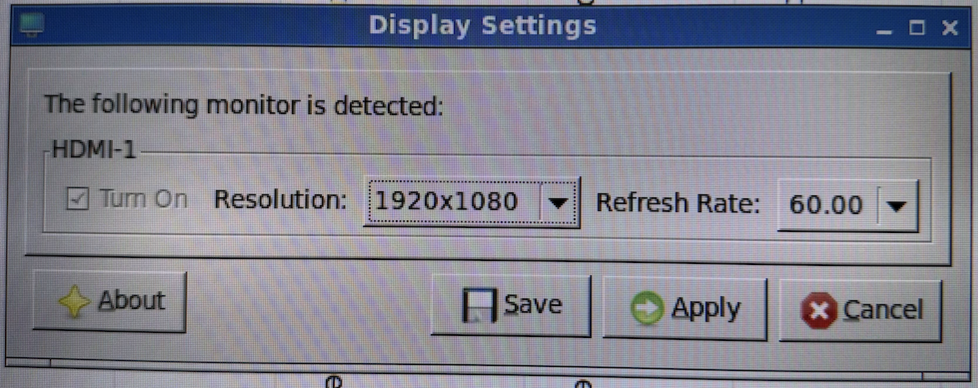
A settings window opens. Click the Resolution dropdown to see supported resolutions, pick the one you want (e.g. 3840×2160 for 4K) and click Apply.
You have 15 seconds to confirm. If everything looks right, click Save. Otherwise the system reverts to the previous resolution.
Close the settings window or reboot if needed.