Appearance
Change workspace user permissions
When you invite a user to your workspace you see the full list of permissions you can assign. To change them afterwards, follow these steps.
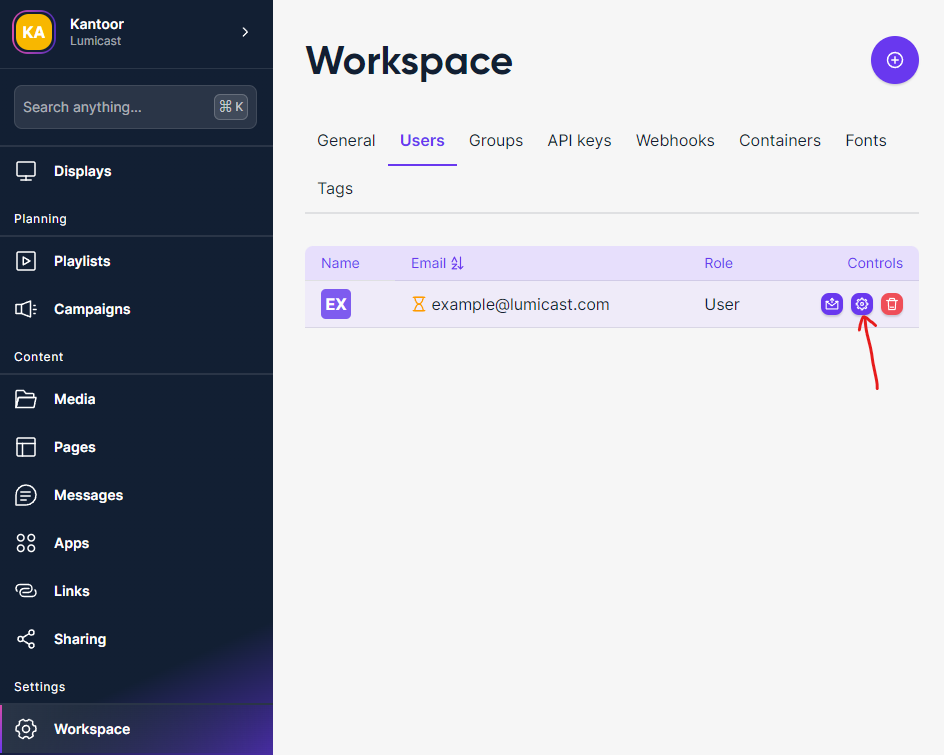
Go to ⚙️ Workspace > Users.
Click the settings icon next to the user you want to edit:
In the modal, configure access:
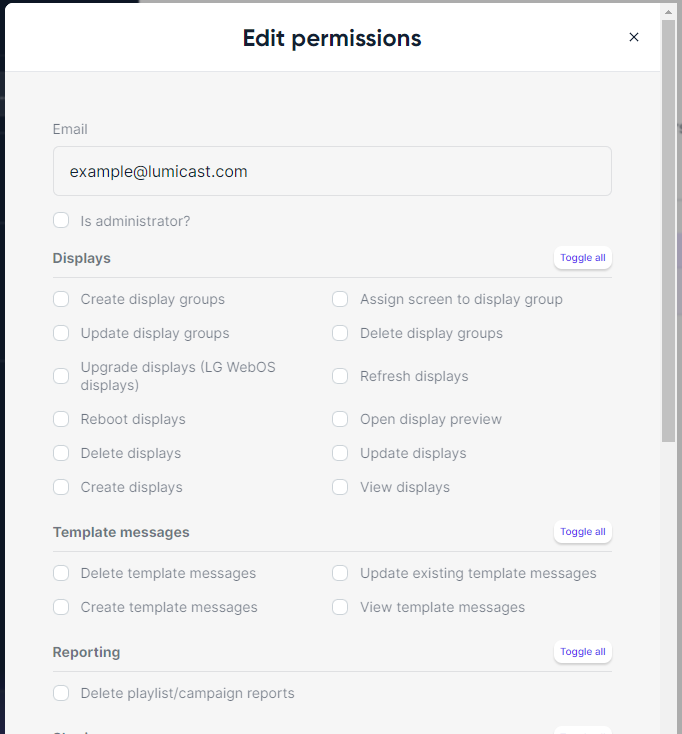
- Admin — toggle on to grant full workspace access. Overrides groups and permissions below.
- Groups — assign one or more groups (only shown when Admin is off).
- Permissions — pick individual permissions directly (only shown when Admin is off). Combines with any permissions inherited from assigned groups.
WARNING
Only grant the permissions a user actually needs.
Click Save at the bottom to apply the changes.