Appearance
Install the Raspberry Pi OS image (easy)
Prepare a Raspberry Pi as a dedicated Lumicast player by flashing an SD card with our OS image, then configuring Wi-Fi.
Preparing the SD card
Recommended SD card
We test on Sandisk Extreme SD cards. The SD card is critical for Raspberry Pi performance and Lumicast playback.
Preparation
Before starting, make sure you can connect the Raspberry Pi's microSD card to your computer — either with an SD adapter or a USB adapter.
Download the latest Raspberry Pi OS image from the Lumicast downloads page. You'll get a
.img.gzfile.Install Etcher and open it. Select the downloaded
.img.gzfile: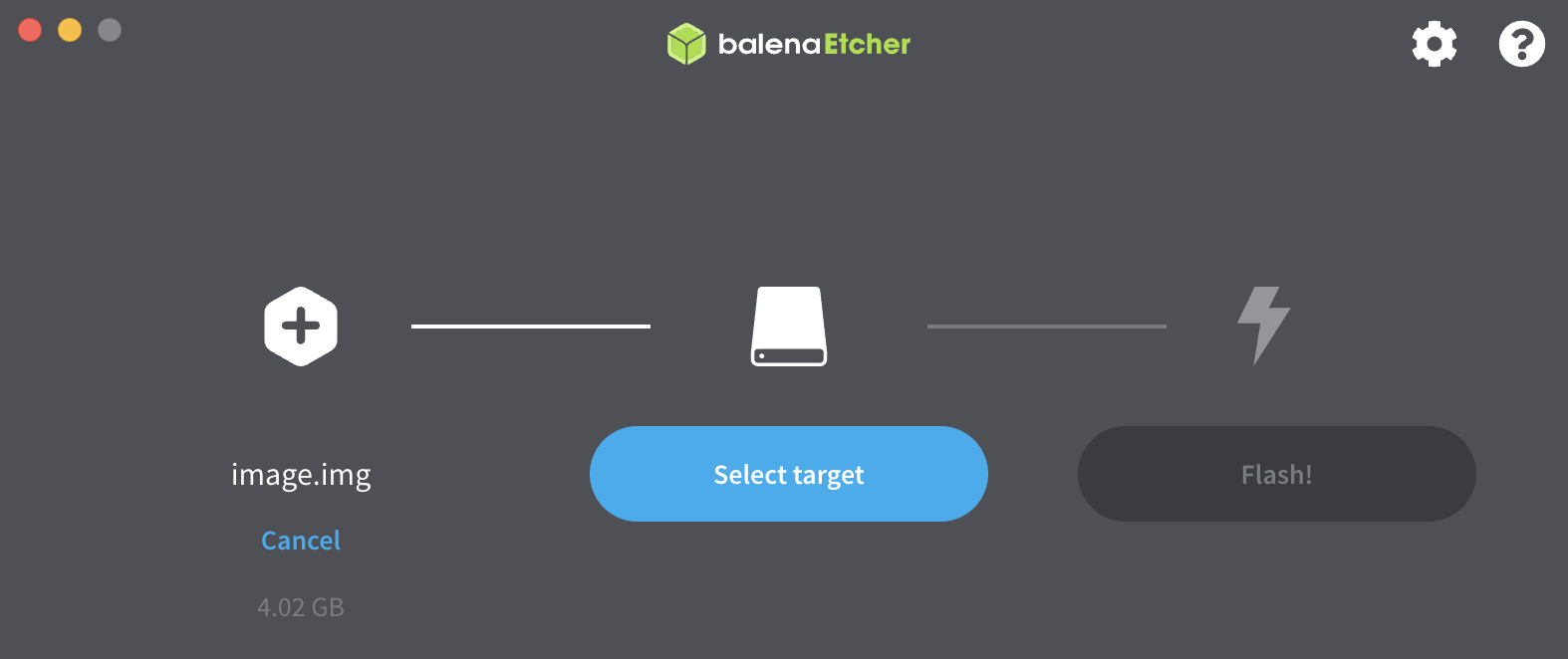
At Select target, pick the SD card to flash:
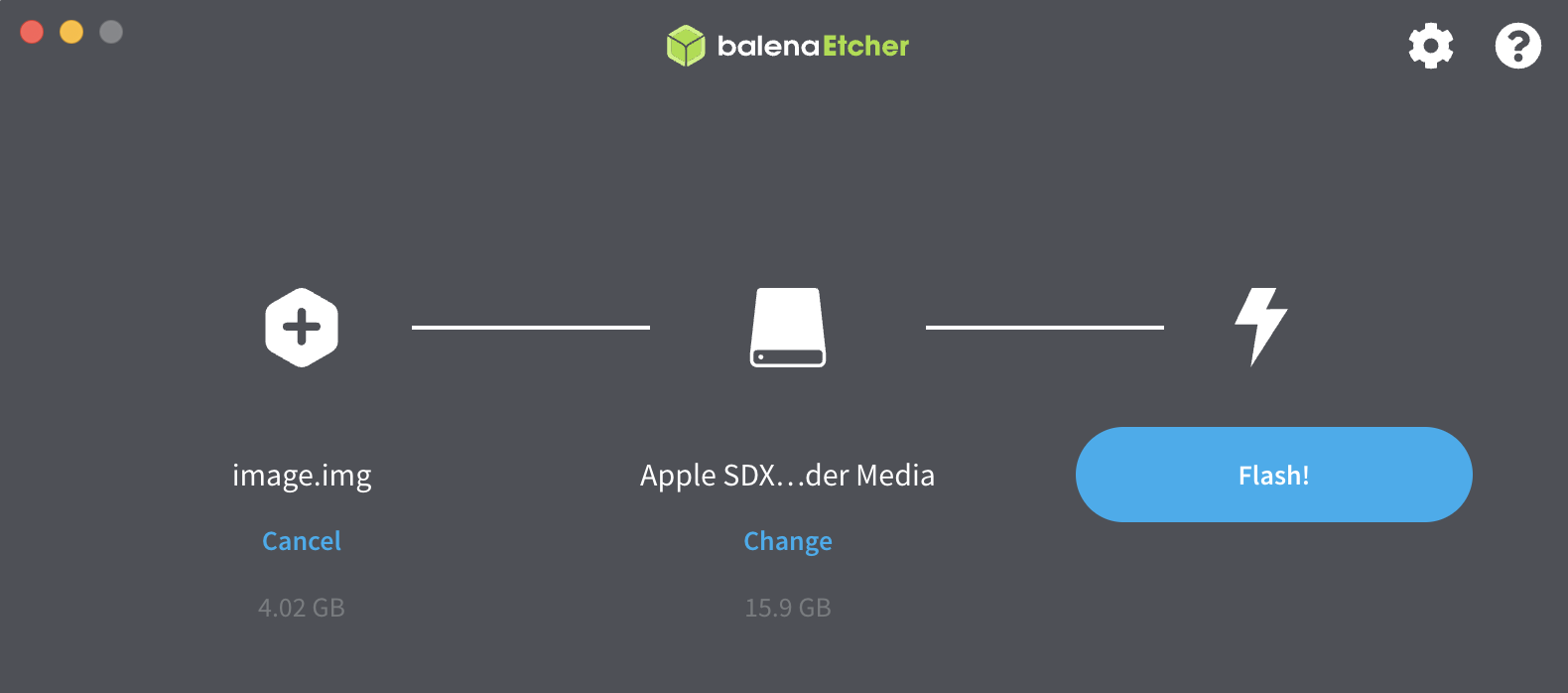
Click Flash! and wait for Etcher to finish.
Remove the SD card and insert it into the Raspberry Pi.
Boot the Raspberry Pi — it will automatically restart once to finish initial configuration.
Using the player
Configuring Wi-Fi
If you're not on wired internet, you'll need Wi-Fi to reach Lumicast.
Recommended — through Lumicast
Connect a USB keyboard (and optionally a mouse) to the Raspberry Pi. Press M on the keyboard, then select Wi-Fi configuration:
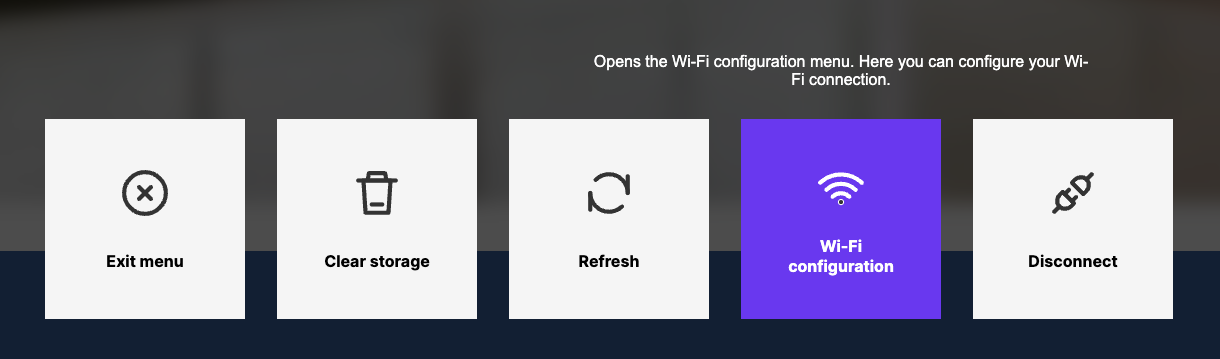
Use the arrow keys to find your network, press Enter, enter the password and confirm with Enter or Connect. A checkmark appears next to the network when connected:

Press Esc to return to the player.
TIP
Don't see any networks? Click Connect manually and enter your network name and password.
Alternative — through the terminal
Connect a keyboard and press:
Ctrl + Alt + NA terminal opens showing nearby networks. Pick one, enter the password, then navigate to the quit button. Your player is back in focus and should be connected.
Once you have an internet connection
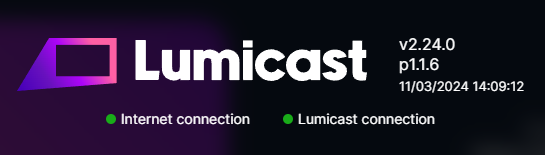
Press M on the keyboard to open the service menu. Both status dots should be green, indicating a good connection to Lumicast:
Keep the device up to date
The image might contain an older Lumicast player version. To update:
- Press
Ctrl + Ron your keyboard to manually refresh the Lumicast player. The latest version gets installed (requires internet). - Open the service menu and click Reboot. The device restarts and finalises updates.
If you've added the player to your workspace and still see the "player version outdated" icon:

…refresh the player to bring it up to date.