Appearance
Content Sharing
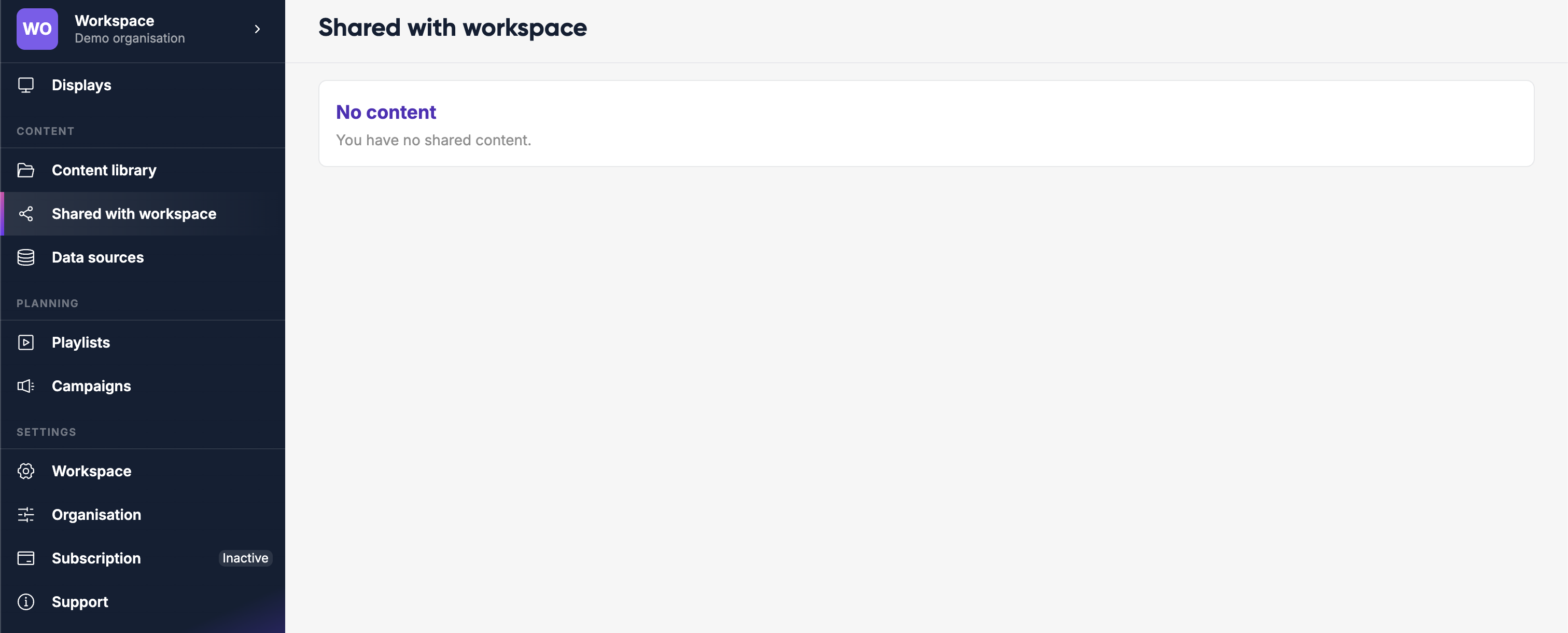
Lumicast lets you share content items across workspaces and with individual users. This is useful when one team manages brand assets or templates that other workspaces should be able to use — without giving those workspaces full access to yours.
What can be shared
Most content types support sharing: playlists, pages, media items, apps, links, and campaigns. (Messages are still shareable for now but the type is deprecated — prefer pages.)
Sharing content
Open any content item and look for the Share or Invite button (usually in the top bar or the … menu). This opens the sharing panel.
From there, you can share with:
| Target | Effect |
|---|---|
| User | Invite by email address — they get access regardless of which workspace they're in |
| Workspace | Grants access to everyone in that workspace |
| Organisation | Grants access to everyone in your organisation across all workspaces |
You cannot share content with your own workspace or organisation (you already have access).
Roles
When sharing, you assign a role that controls what the recipient can do with the item:
| Role | What they can do |
|---|---|
| Viewer | View and use the content, but cannot edit it |
| Contributor | View and add to the content (e.g. add items to a shared playlist) |
| Editor | Fully edit the content |
| Admin | Edit the content and manage who else has access to it |
Viewing content shared with you
Shared content appears under Shared with me in the left sidebar. It shows all items that other workspaces or users have shared with your workspace.
You can use shared content in your own playlists and pages according to the role you've been given.
Managing existing shares
Open the sharing panel on a content item to see a list of everyone it's currently shared with. From here you can:
- Change someone's role
- Remove their access
TIP
You cannot remove your own access to content you don't own.