

Connect Zermelo
Lumicast can pull a school's timetable straight from Zermelo and show it on your displays. This guide walks a Zermelo Portal administrator through granting Lumicast access and creating the authorization code you paste into Lumicast.
Partner rights
Zermelo has replaced the old "API token" integration with partner rights: instead of sharing a token, the school creates a partner for Lumicast, grants it access to specific endpoints and fields, and generates a one-time authorization code. The older "Zermelo (legacy)" connection in Lumicast keeps working for existing setups, but new connections use the partner flow described here. To move a legacy connection over, open its menu under Data sources and choose Migrate: your data sources and apps keep working.
1. Create the partner
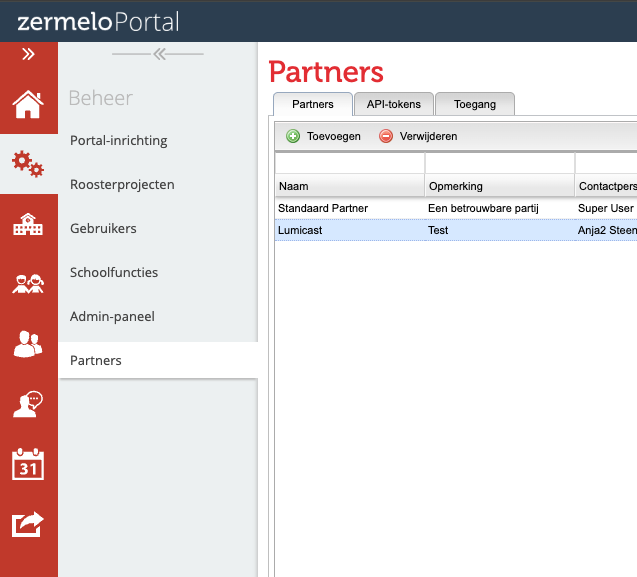
In the Zermelo Portal, go to Beheer › Partners and open the Partners tab. Click Toevoegen.
Fill in the partner details:
- Naam —
Lumicast - Contactpersoon school — your own details
- Emailadres partner —
[email protected] - Projecten — select the schedule projects (roosterprojecten) whose timetable you want to show. Pick every school year / location you want to show.
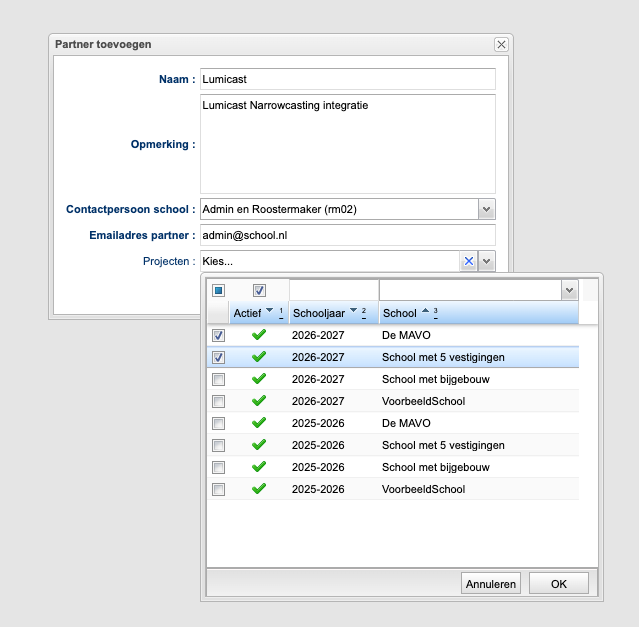
Click OK.
2. Grant access to the appointments endpoint
Open the Toegang tab and click Toevoegen.
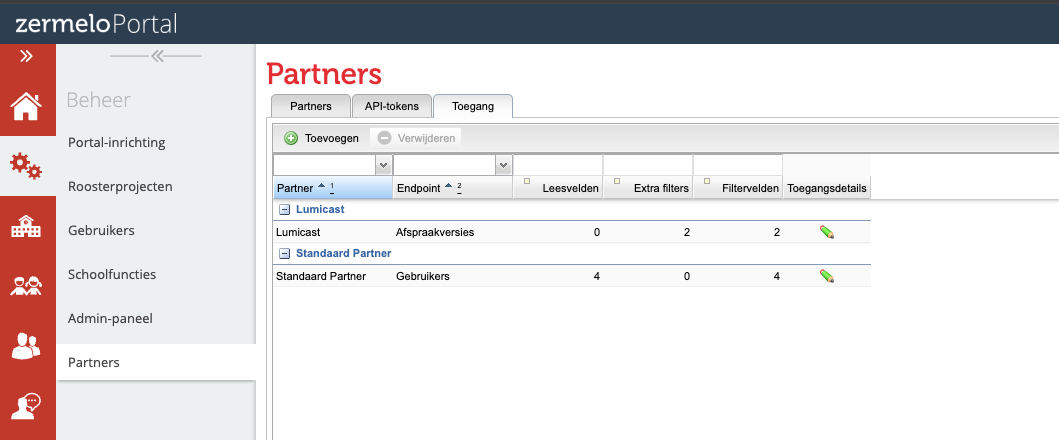
- Set Partner to
Lumicast. - Set Endpoint to appointments (Afspraakversies).
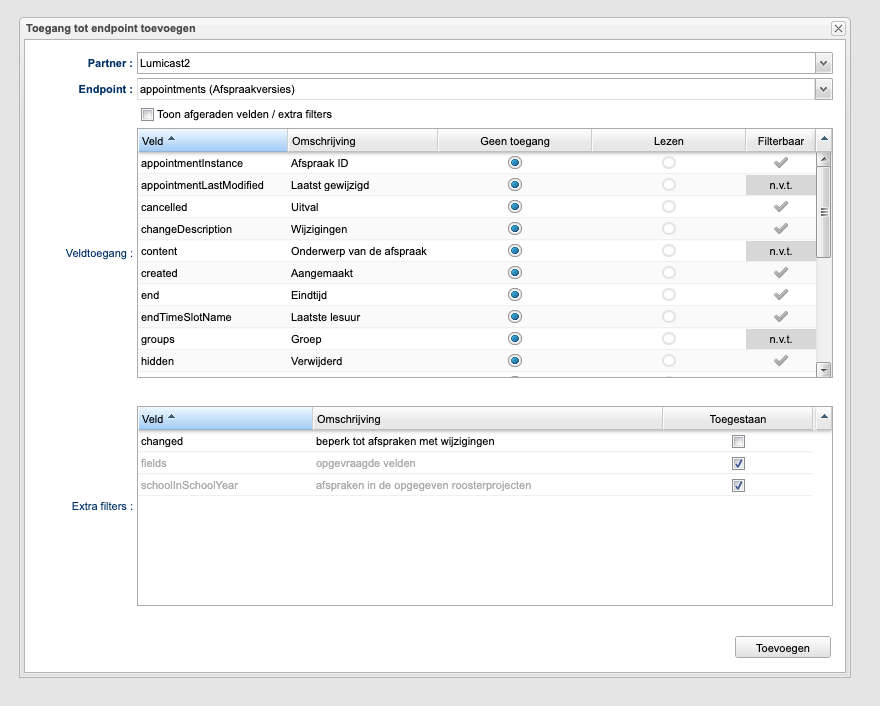
- Under Veldtoegang, set every field to Lezen (read). This is the simplest reliable setup — the schedule app uses most of these fields, and it handles the few it can't get (they aren't offered to partners) gracefully.
Read access is required
If a field has no read access, Lumicast doesn't request it, and if zero fields are granted the connection can't be created. At a minimum these fields must be set to Lezen, or the schedule won't show correctly:
id, appointmentInstance, start, end, lastModified, type, valid, cancelled, changeDescription, subjects, teachers, groups, locations, groupChanged, locationChanged, teacherChanged, timeChanged
Granting all fields means you don't have to come back here when the app starts using more of them.
- Under Extra filters, leave the fields and schoolInSchoolYear filters allowed (required, on by default). The
startandendfields are filterable by default; Lumicast uses that to fetch only the schedule around the current day.
Click Toevoegen (or Bijwerken when you edit an existing grant).
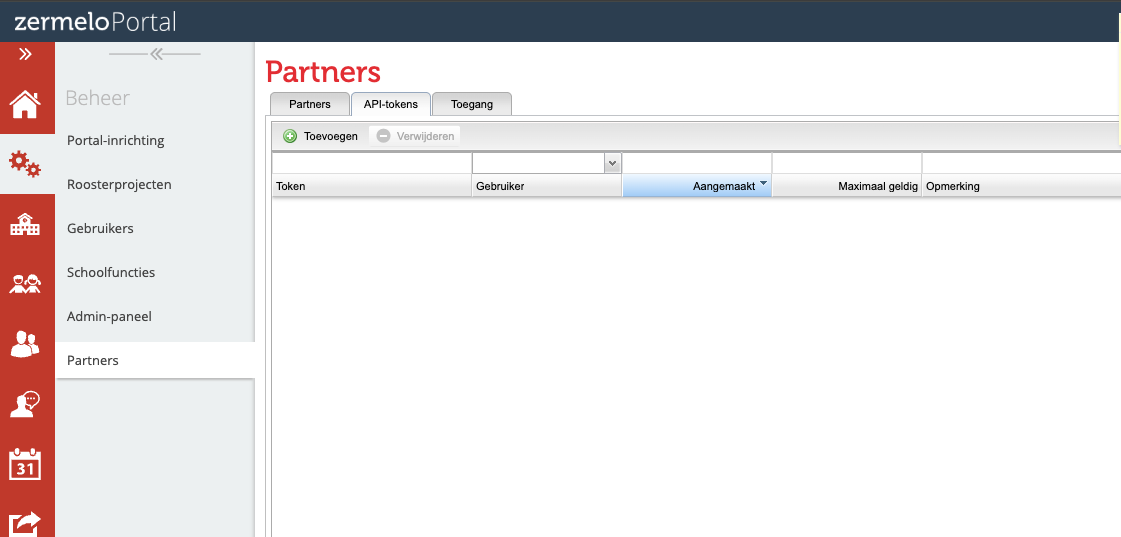
3. Create an API token
Open the API-tokens tab and click Toevoegen.
- Gebruiker — select the
Lumicastpartner. - Maximaal geldig — set an expiry date. Pick a date far in the future so the connection keeps working (for example several years ahead).
- Opmerking — optional, for example
Lumicast narrowcasting.
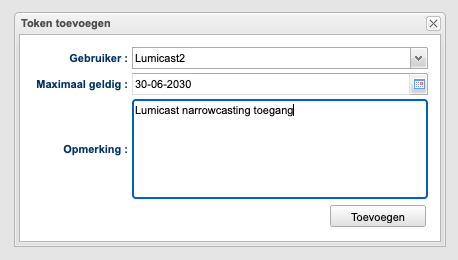
Click Toevoegen.
4. Copy the authorization code
The Portal shows a one-time authorization code. It is shown only once and must be used within 30 days.
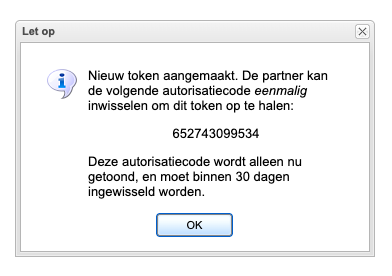
Copy this code — you need it in the next step.
5. Add the connection in Lumicast
In Lumicast, go to Data sources and click Create data source.
Under Connected services, open Zermelo and choose Zermelo schedule.
Under Select connection, choose New connection and fill in:
- Base URL — your portal address including
https://, for examplehttps://yourschool.zportal.nl - Authorization code — the code from step 4
Click Save. Lumicast exchanges the code for an access token and names the connection after your school.
- Base URL — your portal address including
Pick the School year (roosterproject) you want to show and click Save.
Troubleshooting
- The connection can't be created — the code is single-use and valid for 30 days. Create a new token (step 3) and try again with the new code. Also check that the partner has read access to at least one
appointmentsfield (step 2). - No schedule appears — make sure the partner has Lezen access to the
appointmentsendpoint (step 2) and that the right project is selected under Projecten (step 1). - Announcements — the partner API doesn't provide announcements. They are only available through the older "Zermelo (legacy)" connection.