Appearance
Microsoft Teams app
Send content to your displays without logging into Lumicast. Synchronise important messages across your displays — the app shows messages as well as images posted in them.
Prerequisites
To give Lumicast permission to read your Teams channel messages, your Microsoft administrator must approve the Lumicast app. Without this, connecting your Microsoft account will not work.
The Microsoft admin of your organisation has to open the following consent screen and approve the Lumicast app. The screen explains exactly what Lumicast is allowed to do on behalf of users who connect their account:
Microsoft admin consent for Lumicast
Creating a Microsoft Teams app
Go to Content > New > App and search for the Teams app.
Click the app to start creating a new app:
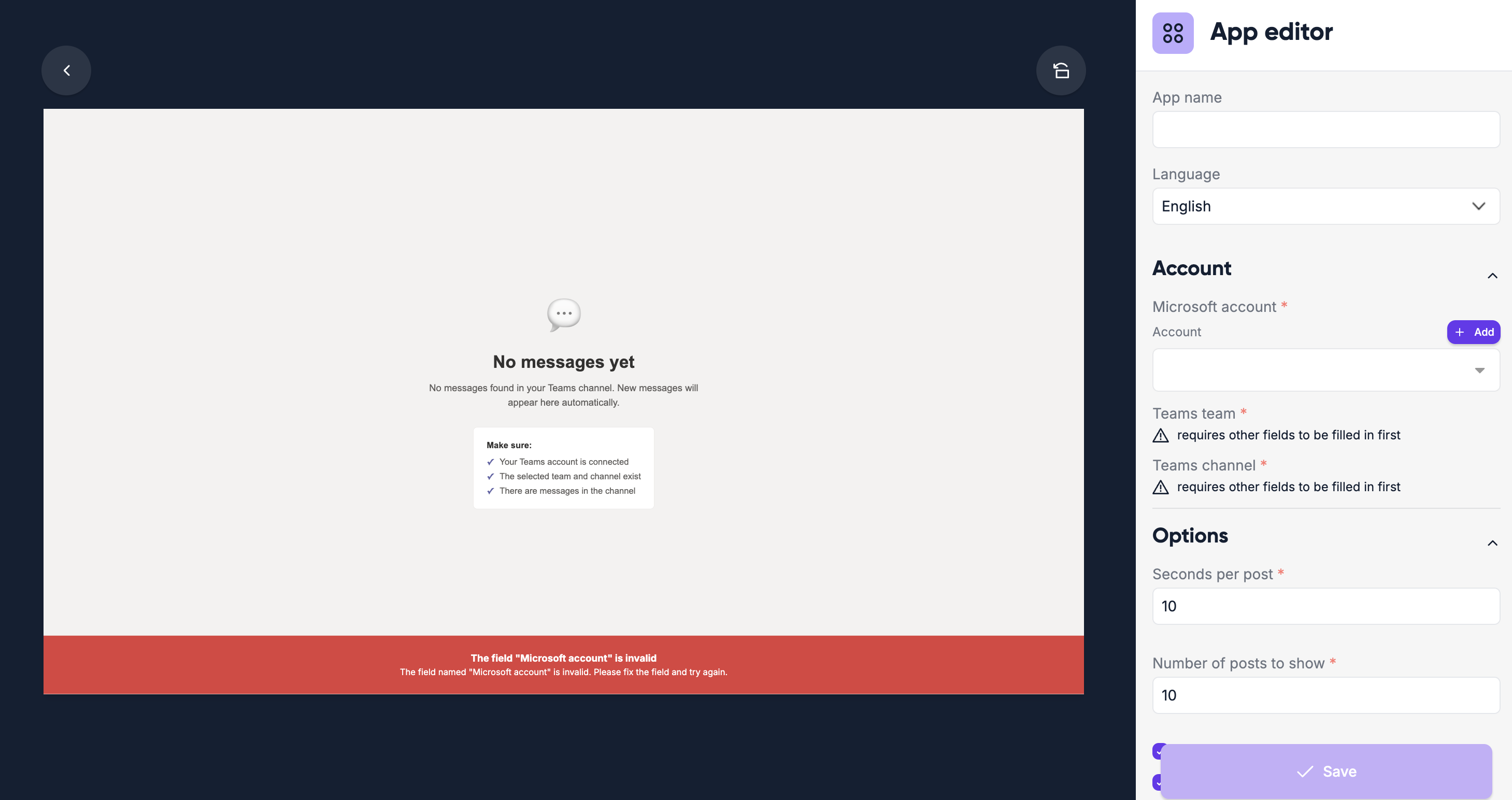
Enter an app name.
Connect your Microsoft account.
Select the Team to pick a channel from.
Select the Teams channel whose messages you want to show.
Click Create app.
Data update frequency
Lumicast checks your Teams data every five minutes. If you don't see a message you just posted, wait at least five minutes.
All configuration options
| Setting | Explanation | Required |
|---|---|---|
| App name | A recognizable name shown in your content library | Yes |
| Microsoft account | The account whose Teams channels the app should read | Yes |
| Teams Team | Team to list channels from | Yes |
| Teams Channel | Channel whose messages are shown | Yes |
| Seconds per post | How long each message is shown before cycling to the next | Yes |
| Number of posts to show | Most recent messages to loop through | Yes |
| Full page display | Fill the page with the message instead of a card-based view | No |
| Show message creator | Show the name of the person who posted the message | No |
| Show message time | Show the time at which the message was posted | No |