Appearance
Zermelo rooster app
Automatically show your school's schedule (and changes) on your displays.
What is Zermelo?
Zermelo is a Dutch company that provides schools with software tools for organizing data, including schedule management.
Creating a Zermelo rooster app
Go to Content > New > App and search for the Zermelo rooster app.
Click the app to start creating a new app:
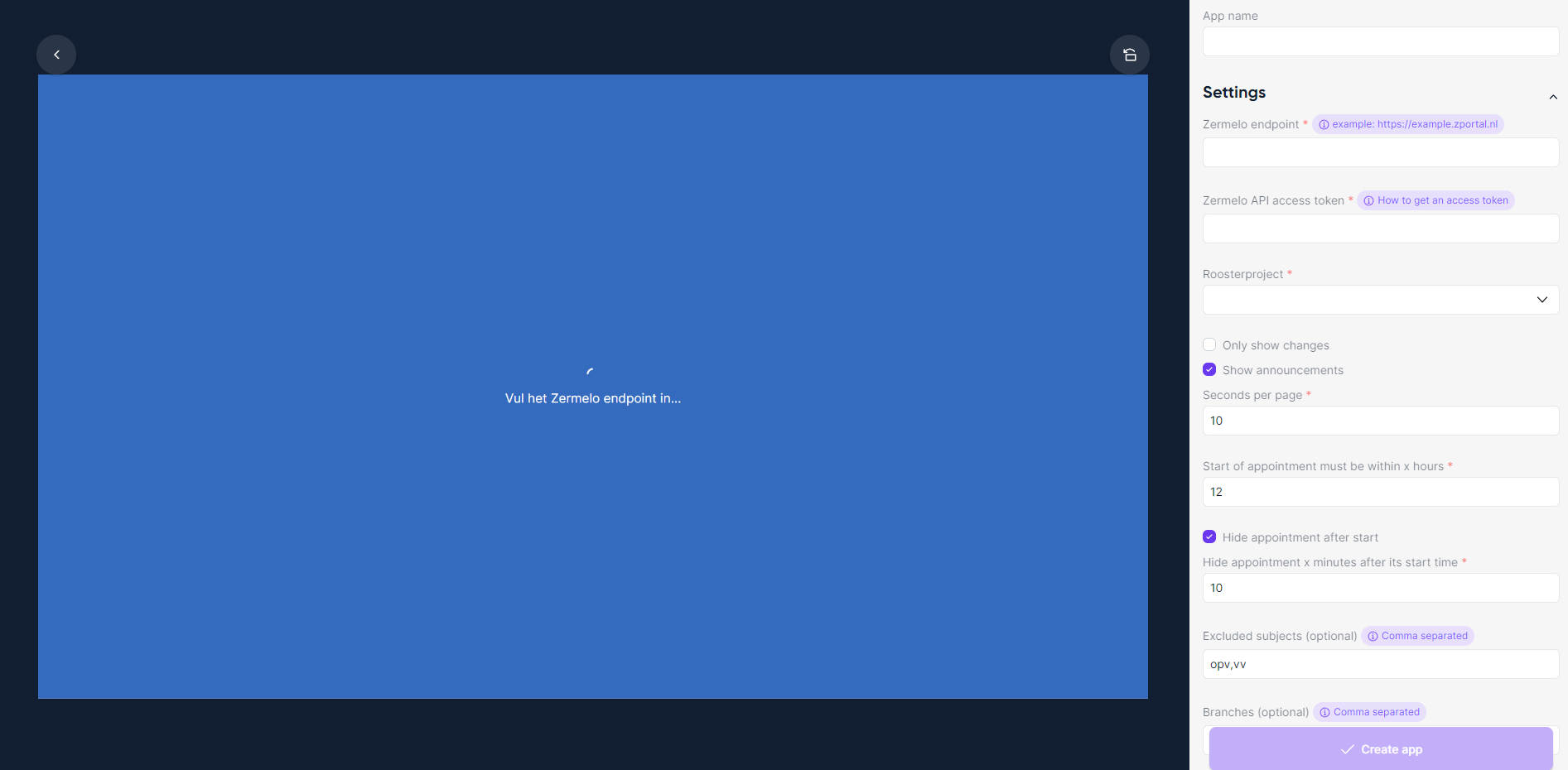
Enter an app name.
Enter your Zermelo details:
- Zermelo endpoint — usually
https://<schoolname>.zportal.nl - Zermelo API access token — see below
- Roosterproject — appears after entering the endpoint and token; pick the project to show
- Zermelo endpoint — usually
Click Create app.
How do I find my Zermelo endpoint?
Contact someone in your organisation who works with Zermelo. The URL they log in with is typically the endpoint you need.
WARNING
Include https:// in the endpoint, otherwise the app won't be able to load the data.
How do I get a Zermelo API access token?
Zermelo's official guide walks through creating an API token with the correct rights:
Zermelo Support — koppelingen met externe partijen
Running the Zermelo app in a cluster of displays
The Zermelo app supports cluster mode — distribute scheduled appointments across several displays so schedules are clearer and all visible at once. See Clustermode in Lumicast.
All configuration options
| Setting | Explanation | Required |
|---|---|---|
| App name | A recognizable name shown in your content library | Yes |
| Zermelo endpoint | URL (including https://) of your Zermelo portal | Yes |
| Zermelo API access token | API token created in your Zermelo portal | Yes |
| Roosterproject | Rooster project to show appointments/announcements from | Yes |
| Sorting | Sort by start time (default), group name, teacher, or room | Yes |
| Only show changes | Only show appointments that have changed ("Roosterwijzigingen") | No |
| Show announcements | Show Zermelo announcements at the bottom | No |
| Seconds per page | Cycle duration when there are too many appointments for one page | Yes |
| Start of appointment must be within x hours | Limit to appointments starting within this window | Yes |
| Hide appointment after start | Remove an appointment once it has started | No |
| Hide appointment x minutes after its start time | Grace period before removal — useful for late arrivals | Yes |
| Hide lessons without group | Skip appointments without a group assigned | Yes |
| Hide automated remark from Zermelo | Suppress Zermelo's auto-generated changeDescription | Yes |
| Show time instead of period | Show start/end times instead of period numbers | Yes |
| Excluded subjects | Comma-separated list of subjects to filter out, e.g. opv,vv,bi | No |
| Branches | Filter by branch if your rooster project has multiple — see below | No |
| Appointment types | Types to show: lesson, exam, activity, choice, talk, other, interlude, meeting, unknown | Yes |
| Enable cluster mode | Spread content across adjacent displays — see Clustermode | No |
| Appointments per page | Appointments shown on one page (useful with cluster mode) | No |
| Cycle through pages on last display | Let the last display cycle through overflow pages | No |
| Total displays using the app | Total number of displays when last-display cycling is enabled | No |
| Hide header | Hide the app header | No |
| Hide date and time | Hide the date and time shown in the header | No |
| List style | Default table, Spacious table, or Spacious grouped table | Yes |
| Background color | App background color | Yes |
| Background image | Custom background image | No |
| Darken background image | Darken the background image for readability | Yes |
| Font size | Scale font to fit the device | No |
| Table padding | Adjust padding inside table cells | No |
| Hide old changes | Hide changes older than a threshold | No |
| Hide changes older than X hours | The age threshold in hours | No |
| Show outdated data notice after X minutes | Change the "data might be outdated" notice delay (default 5 min) | No |
| Room (regex) filter | Only show rooms matching the regex | No |
| Group (regex) filter | Only show groups matching the regex | No |
| Remark (regex) filter | Only show appointments with remarks matching the regex | No |
| Hide generated remark of appointment types | Suppress Zermelo-generated descriptions for specific types | No |
Advanced: display index option
Useful if you want multiple Zermelo apps on a single display in cluster mode. Since a display has only one display index, create duplicate apps with different display index values.
Advanced: room/group regex filter
Some schools have one Zermelo rooster project for multiple physical branches without a branch distinction in Zermelo. Filter rooms like abc010, abc011 vs def010, def011 by adding abc or def to the regex filter. If you need help, email [email protected].
Branches (vestigingen) in the Zermelo portal
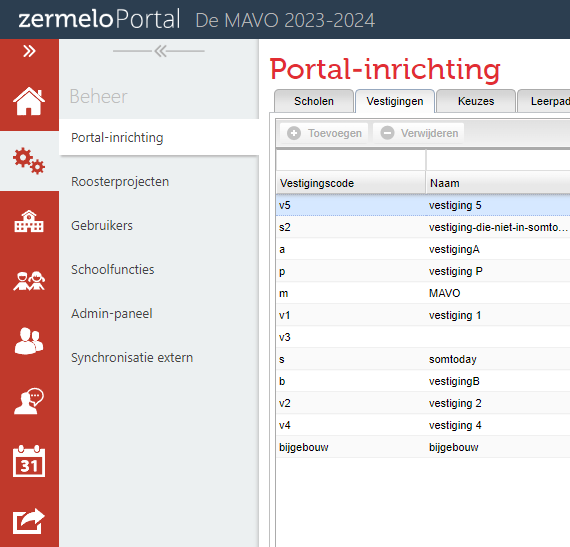
Find branches under Beheer > Portal-inrichting > Vestigingen in your Zermelo portal. The value you want is Vestigingscode.