Appearance
Install on Windows
Overview
This article explains how to run the Lumicast player on Windows.
Install the player
Download the player
On the Lumicast downloads page, find the Windows section. Three options are available: x64, ia32 and arm64.
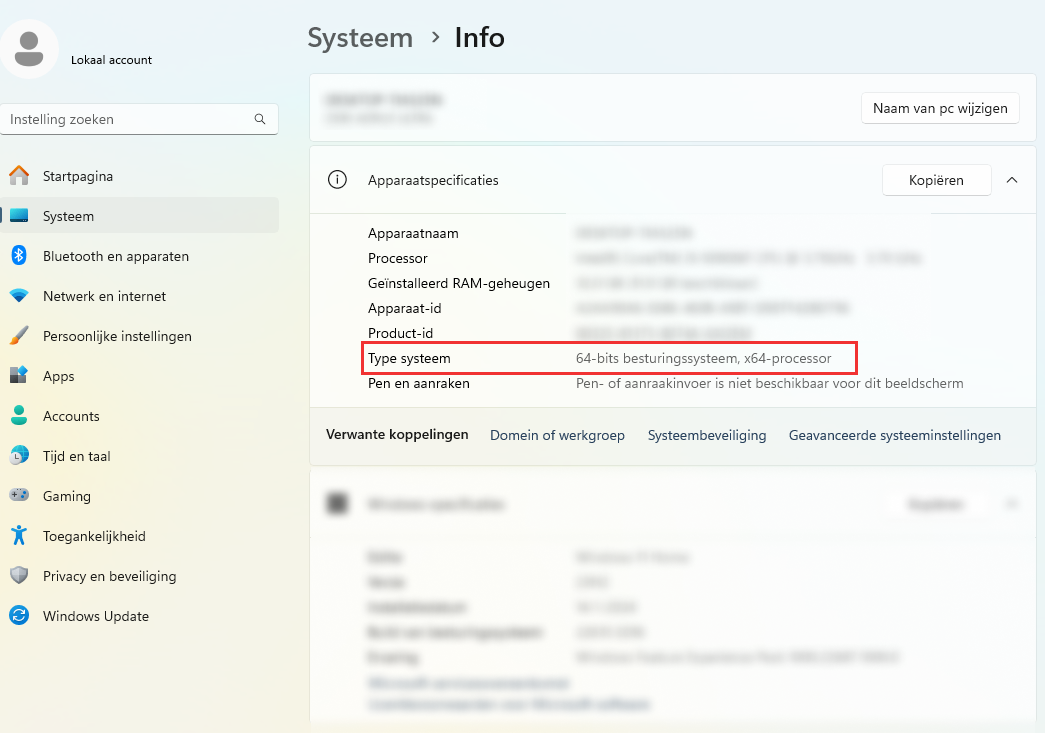
To check your Windows architecture:
Press
Windows key + Ito open Settings.Go to System > About.
Look for System type — it shows whether your OS is x64, ia32 (x86), or ARM64.
Use the downloaded player
Run the installer. This automatically enables auto start — when the computer reboots, the Lumicast player launches again.
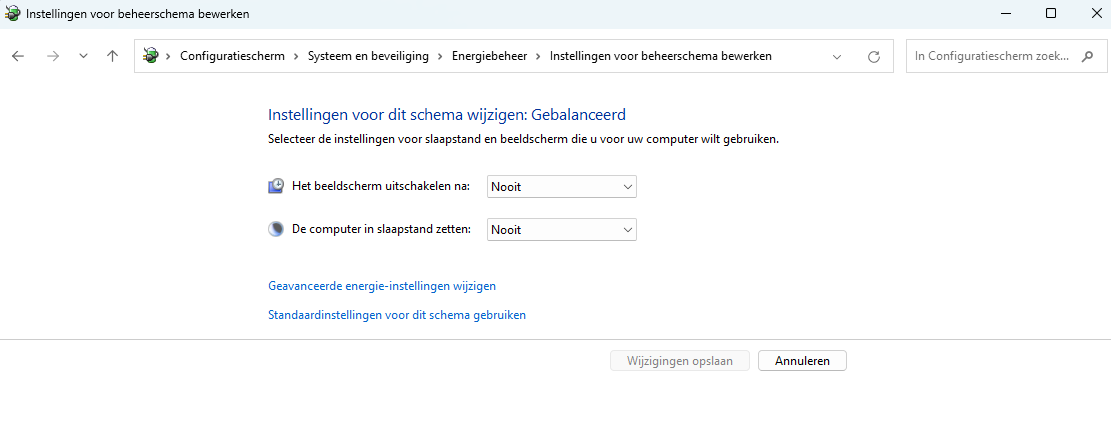
Keep your display on 24/7
- Open Control Panel > System and Security > Power Options.
- Find your active plan and click Change plan settings.
- Set Turn off the display and the standby option to Never.
- Click Save changes.