Appearance
SharePoint Birthdays app
Show current and upcoming birthdays of students or employees on your display.
Turn a simple SharePoint list into a birthday display in Lumicast. The SharePoint list needs at least two columns: a name and a date.
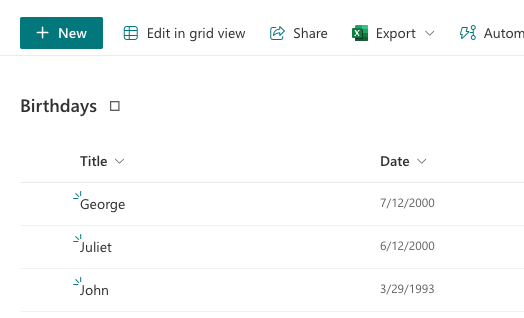
Creating a SharePoint Birthdays app
Go to Content library > New > App and search for the SharePoint Birthdays app.
Click the app to start creating a new app:
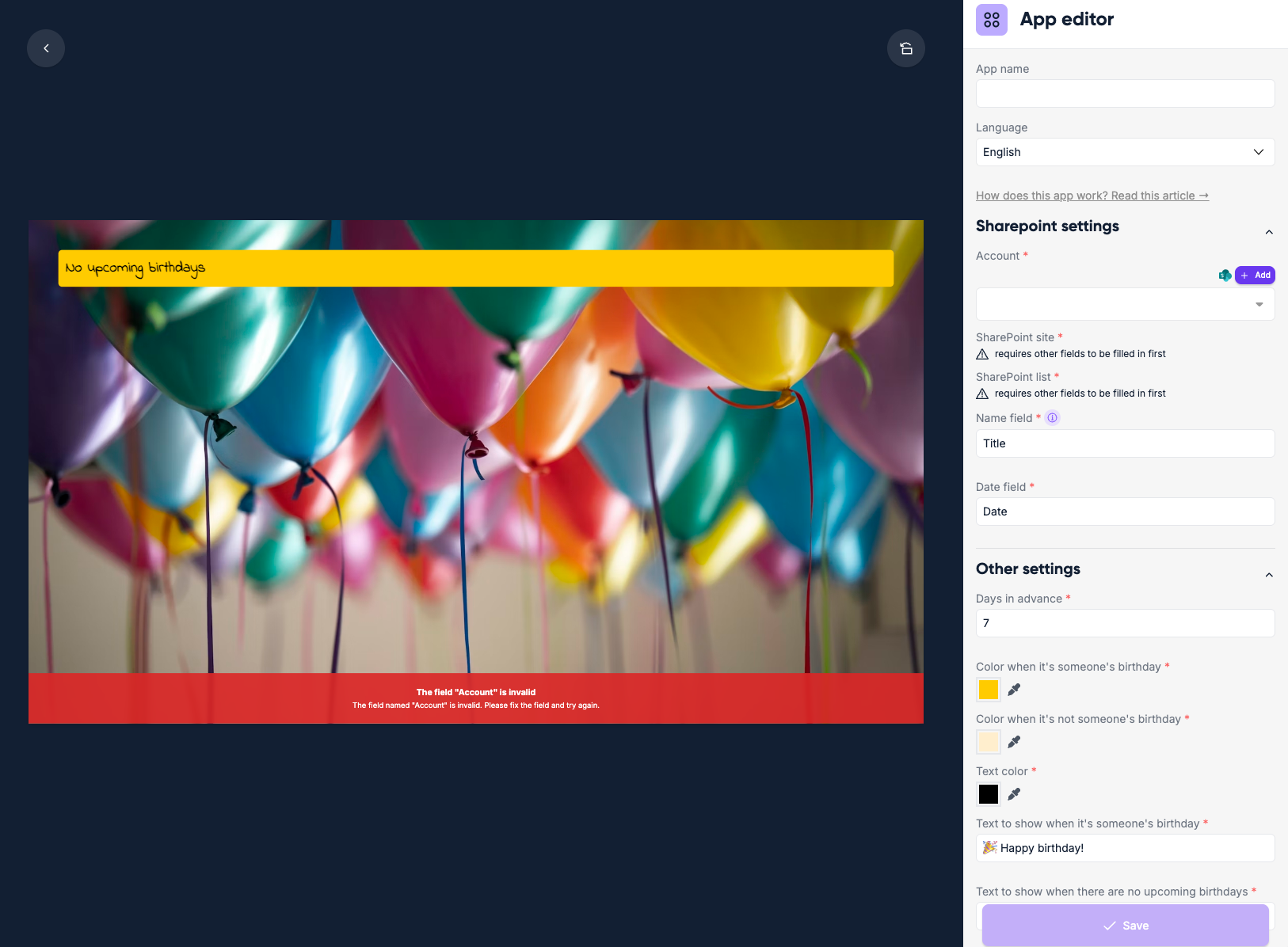
Enter an app name.
Connect your SharePoint account and select the correct site and list.
In the Name and Date fields, enter the exact column names from your list.
Click Save.
Data update frequency
Lumicast checks your SharePoint data every minute. If you don't see a birthday you just added, wait at least one minute.
All configuration options
| Setting | Explanation | Required |
|---|---|---|
| App name | A recognizable name shown in your content library | Yes |
| Account | Microsoft SharePoint connection used to fetch the list | Yes |
| SharePoint site | The SharePoint site that contains the list | Yes |
| SharePoint list | The SharePoint list containing the birthday data | Yes |
| Name field | Column name used for the name (often Title by default in SharePoint) | Yes |
| Date field | Column name used for the birthdate (defaults to Date) | Yes |
| Days in advance | How many days ahead a birthday starts showing (default 7) | Yes |
| Color when it's someone's birthday | Background color on a birthday | Yes |
| Color when it's not someone's birthday | Background color for upcoming rows | Yes |
| Text color | Row text color | Yes |
| Text to show when it's someone's birthday | Message shown on a birthday row | Yes |
| Text to show when there are no upcoming birthdays | Message shown when nothing is upcoming | Yes |
| Font | Font family to use | No |
| Background image | Custom image behind the birthday rows | No |
| Hide background image | Remove the background image (useful when embedded in a page) | No |