Appearance
Install on macOS
Overview
This article explains how to run the Lumicast player on macOS.
Install the player
Download the player
On the Lumicast downloads page, look for the macOS section. You'll see two versions: Intel and Apple Silicon.
Which version do I need?
Click the Apple menu:
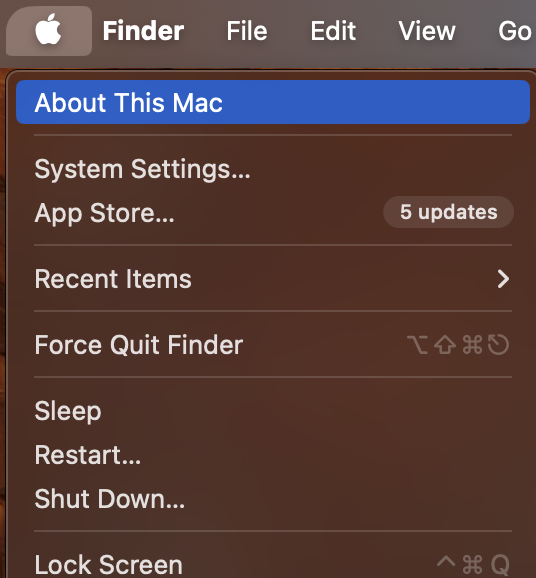
Click About This Mac:
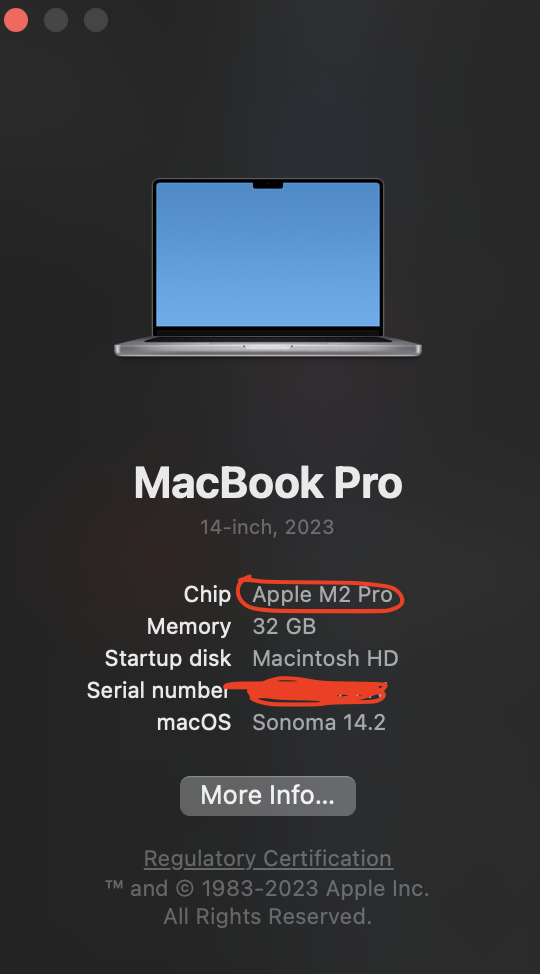
If you see an Apple chip, use the Apple Silicon download. If you see Intel, use the Intel download.
Use the downloaded player
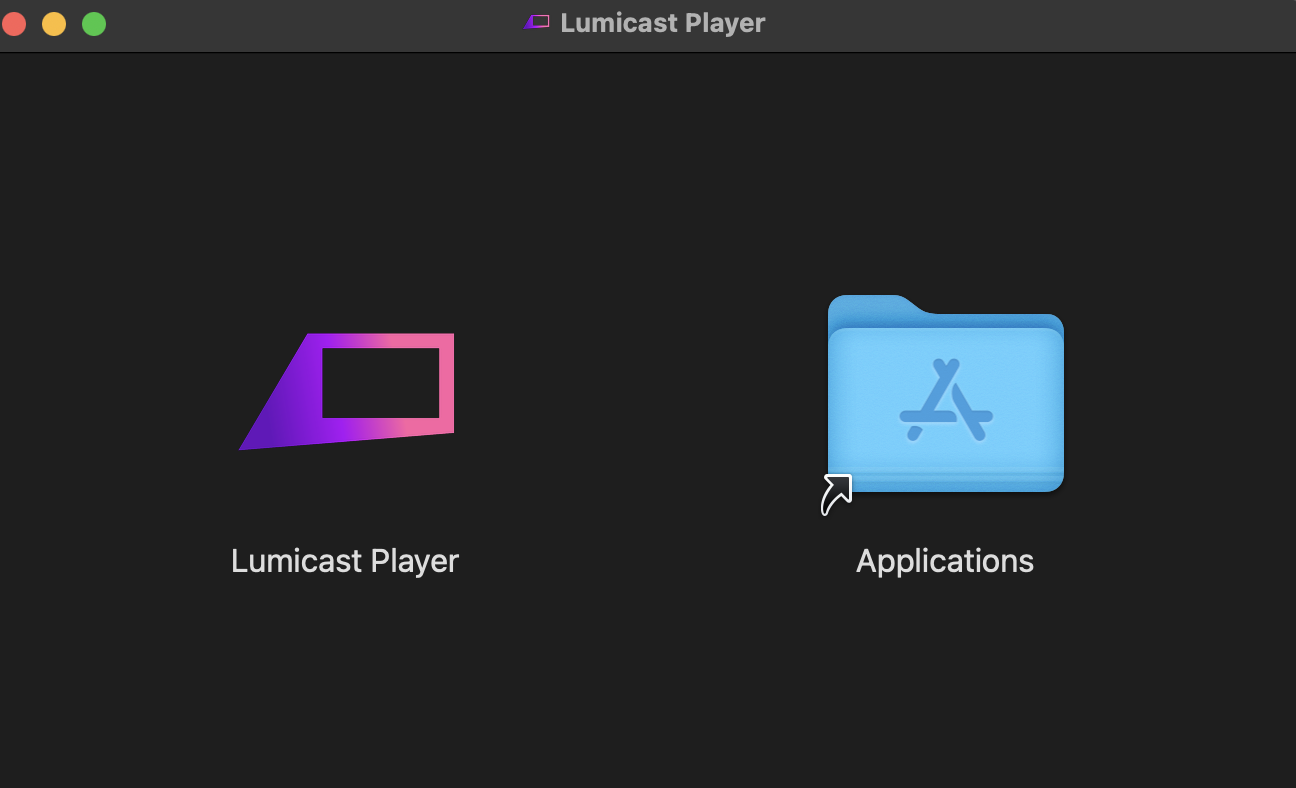
The download file appears in your Downloads folder as Lumicast Player_x.x.x_x.dmg. Double-click it and drag the Lumicast player into Applications:
You may see a security prompt:
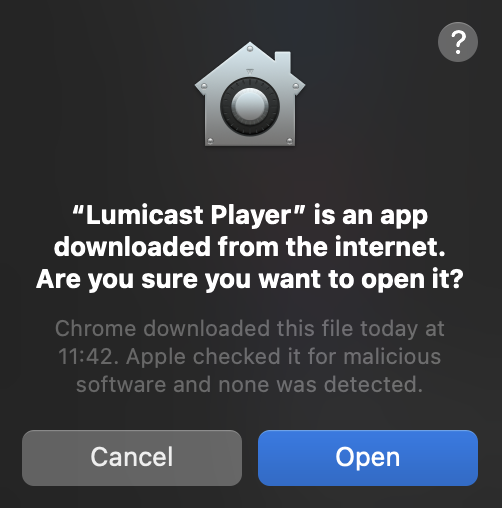
Choose Open.
Launch the player with ⌘ + Space and searching for Lumicast Player.
Keep your display always on
- Open System Preferences from the Apple menu.
- Click Energy Saver (older macOS) or Battery (Catalina+).
- On MacBooks, select the Power Adapter tab. Drag Turn display off after to Never.
- Check Prevent computer from sleeping automatically when the display is off (if available).
- Optional — in Desktop & Screen Saver > Screen Saver, set Start after to Never.