

The Player
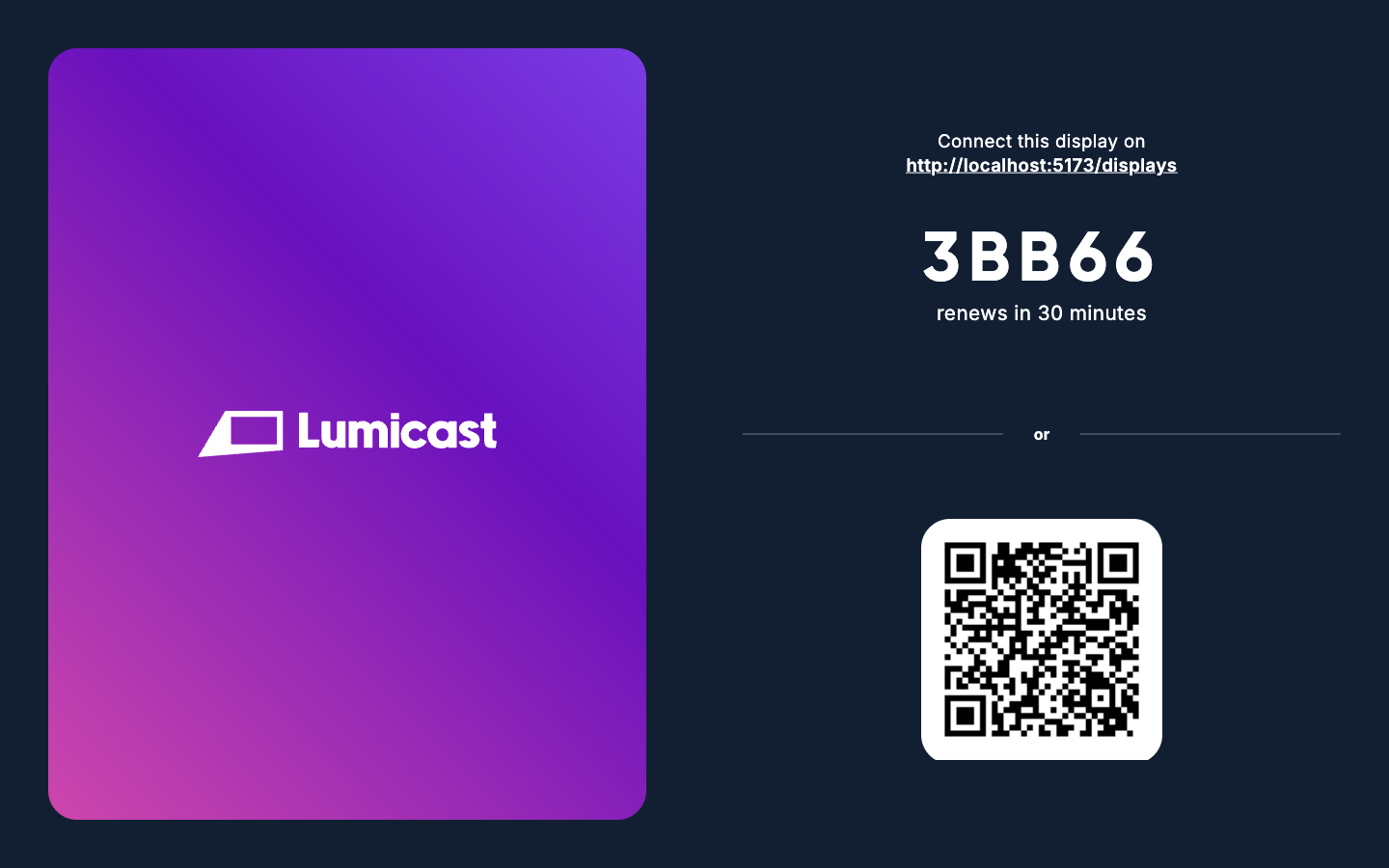
The Lumicast Player is the app that runs on your physical displays. It connects to your workspace, receives the content you've assigned, and displays it.
You don't need to manage the player directly — once it's connected, everything is controlled from app.lumicast.com. But this page explains what it is and how it works, so you know what to expect.
What runs on your display
The player runs on the device connected to your display. Once it's open and connected to your workspace, it:
- Receives the content assigned to that display
- Plays playlists in order, looping continuously
- Shows campaign content when one is active
- Updates automatically when you make changes in Lumicast
Browser vs native app
Browser — Open player.lumicast.com in any modern browser. This is the quickest way to get started and works on any device. No installation required.
Native apps — For permanent installations, use the dedicated native player for your hardware. Native apps offer:
- Automatic startup when the device powers on
- Remote reboot and reboot scheduling from Lumicast
- Better performance and reliability
- Kiosk mode (locks the device to the player)
Download the native app for your platform from lumicast.com/downloads.
Supported platforms
| Platform | Notes |
|---|---|
| Web | Any modern browser at player.lumicast.com |
| Windows | Native app for 64-bit Windows 10 or later, x64 and ARM64 |
| macOS | Native app for macOS 13 Ventura or later, Intel and Apple Silicon |
| Linux | Native app for 64-bit Linux, x64 and ARM64 |
| Raspberry Pi | Dedicated OS image for Raspberry Pi 4 and 5 |
| Android TV | Available on Google Play or direct APK |
| Amazon Fire TV | Available on Amazon Appstore |
| Samsung Tizen | For Samsung commercial displays |
| LG WebOS | For LG commercial displays |
Offline playback
The player caches content locally on the device. If the display loses its internet connection, it keeps playing whatever was last received. When connectivity returns, it syncs and resumes normal operation.
This means brief internet outages won't cause your displays to go blank.
Keeping the player running
For best results:
- Keep the browser tab or app in the foreground (not minimized)
- Disable screensavers and sleep mode on the display device
- Ensure the device has a stable internet connection
- Use a wired connection where possible for reliability
Updates
The player updates when it restarts. To get the latest version, reboot the device or restart the player app. You can trigger a remote reboot from the display detail page in Lumicast if you're using a native app. On Android, the service menu also has an Update app action to install a new app version. A Raspberry Pi with the Lumicast OS image installs its system updates by itself at night.
Accessing the service menu
On the player, press the M key (or the OK button on a remote) to open the service menu.
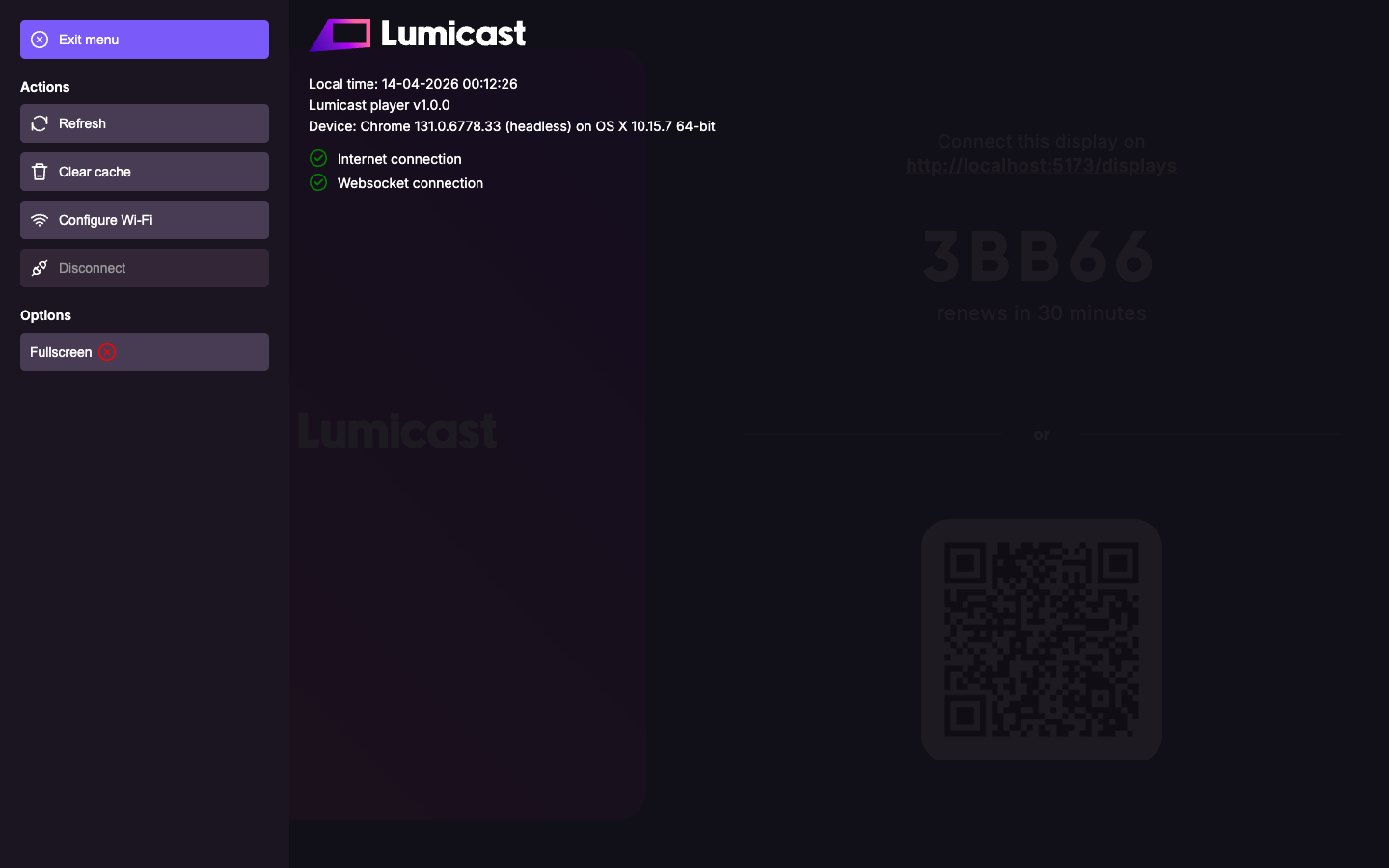
The service menu shows:
- Local time on the device
- Player and platform version
- Device and browser information, plus IP and MAC address where available
- Internet and WebSocket connection status
It also has actions to Refresh the player, Reboot the device (on supported hardware), Clear cache, Configure Wi-Fi (on supported hardware), Android settings (on Android), and Disconnect the display from its workspace. Useful for on-site troubleshooting without needing remote access.