Appearance
Content Library
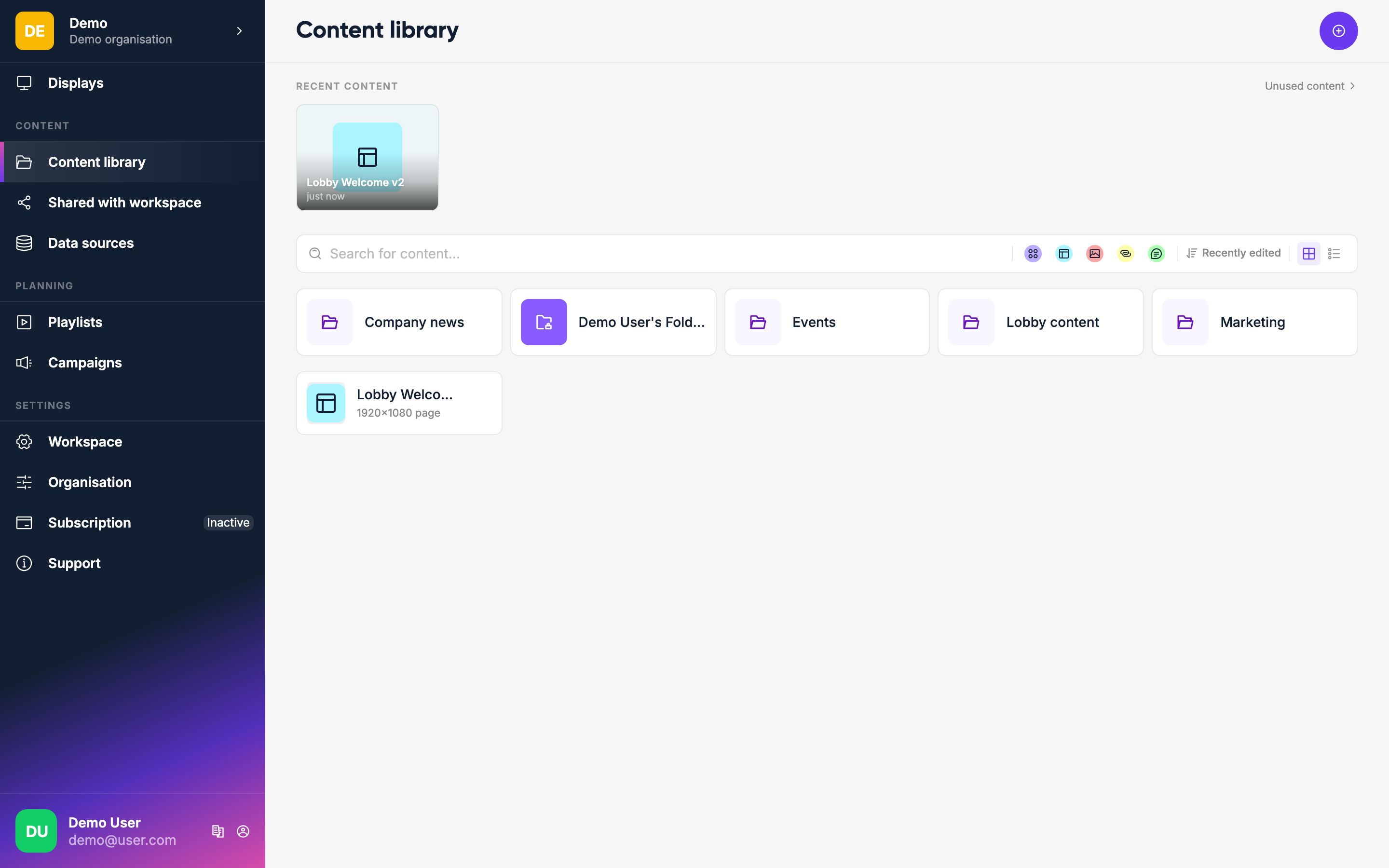
The Content section is where all your media and content lives. You can organize it into folders and use it across playlists, campaigns, and pages.
Content types
| Type | What it is |
|---|---|
| Media | Images, videos, and PDFs you upload |
| Page | A layout you design yourself using the page editor |
| Message | Deprecated. A text item. Use a Page instead. |
| Link | A URL to display in a browser frame |
| App | An interactive app (e.g. a wayfinder or form) |
| Playlist | A sequence of content items with durations |
| Campaign | Content that overrides normal scheduling (like a breaking announcement) |
Adding content
Click the + button to see all the types of content you can create.
Uploading media
Choose Upload from the dropdown and select files from your computer. Images and videos appear in the library once processing is complete. Large video files may take a moment to process.
Folders
Keep your library organized by creating folders. Click the New folder button, name it, and drag items in — or use the Move option from an item's context menu.
Searching and filtering
Use the search bar at the top of the content page to find items by name. You can also filter by content type.
Content details
Click the … menu on any item to:
- Rename it
- Move it to a folder
- See where it's used (which playlists and campaigns reference it)
- Duplicate it
- Delete it
Messages
Deprecated
Text messages are deprecated and will be removed in a future release. Use the Page Editor to create text-based layouts instead.
Messages are text-only content items. They support basic formatting and can be used as a ticker or full-screen text overlay.
Shared content
If someone has shared content with you from another workspace, it appears under Shared with me in the sidebar.
Unused content
Go to Content → Unused to find items that aren't referenced by any playlist or campaign — useful for cleaning up.