Appearance
Playlists
A Playlist is a sequence of content items that plays in a loop on a screen. You control what plays, in what order, and for how long.
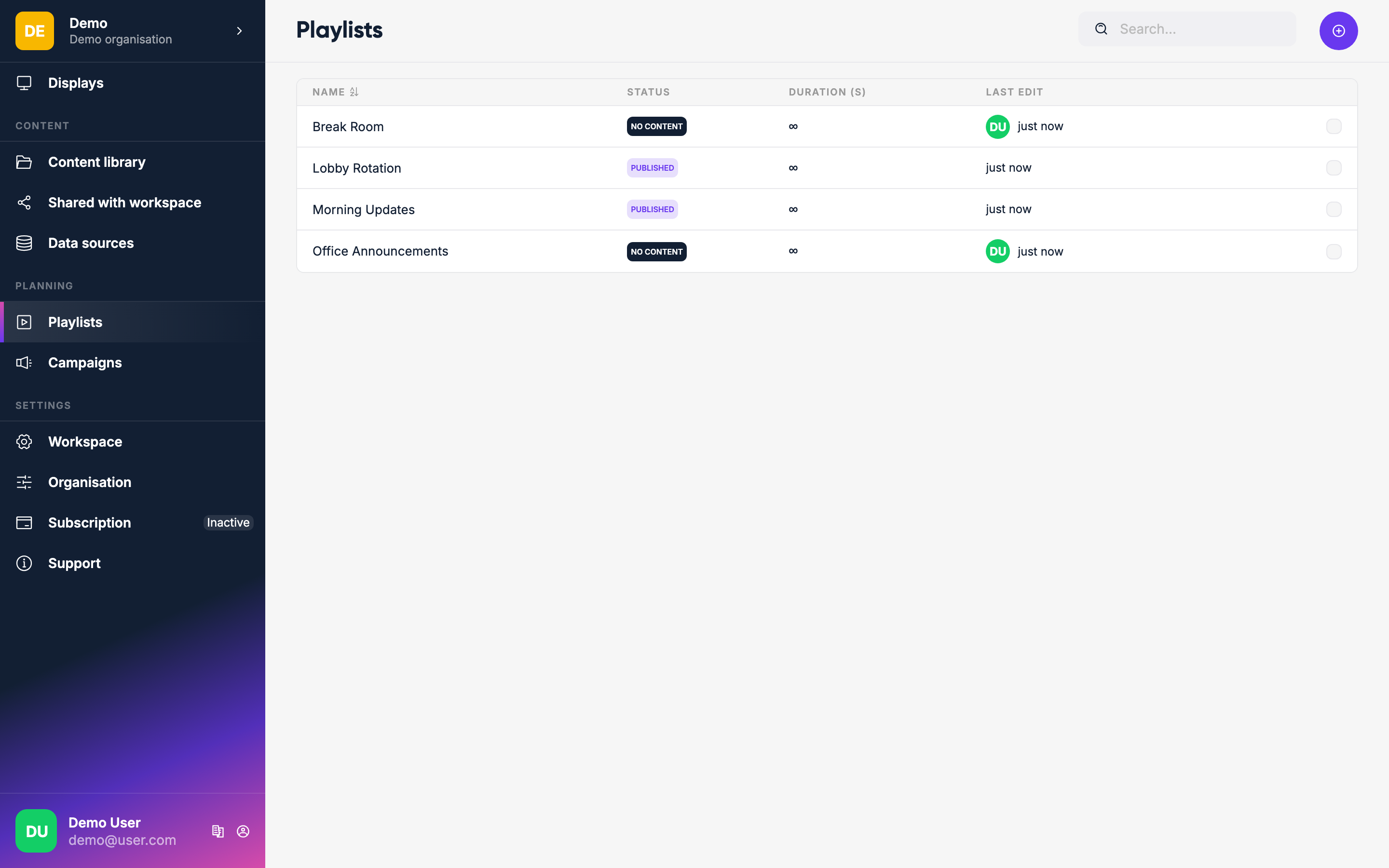
Creating a playlist
Click the + button on the Playlists page.
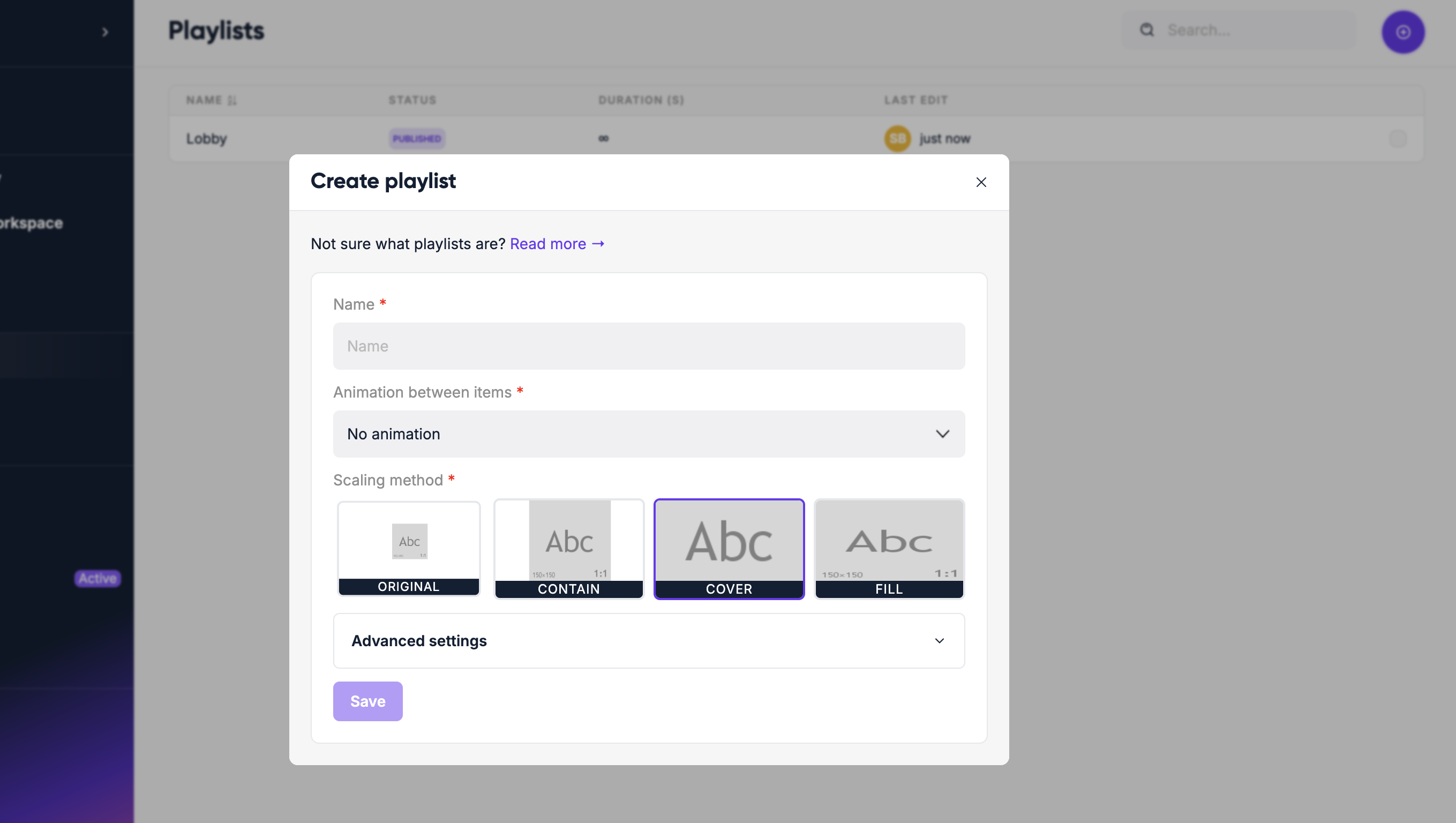
Give it a name. The other settings are optional:
| Setting | What it does |
|---|---|
| Animation | Transition effect between items (see options below). Note: may be disabled on low-end devices |
| Image scaling | How images and videos are fitted to the screen (see below) |
| Image backdrop blur | If content doesn't fill the screen, shows a blurred version of the same image as a background |
| Maximum length | Caps the total playlist duration at a set number of seconds |
Transition animations
| Option | Effect |
|---|---|
| None | Hard cut between items |
| Cross-fade | Items fade into each other |
| Scale | Next item scales into view |
| Slide Left | Next item slides in from the right |
| Slide Right | Next item slides in from the left |
| Slide Top | Next item slides in from the bottom |
| Slide Bottom | Next item slides in from the top |
Image scaling options
| Option | Effect |
|---|---|
| Scale Down | Shows content at its native size, but shrinks it if it's larger than the screen |
| Contain | Fits the content inside the screen without cropping |
| Cover | Fills the screen, cropping edges if needed |
| Fill | Stretches content to fill the screen exactly |
Click Create to open the playlist editor.
Adding content
Drag and drop content from your library into the playlist. You can add:
- Media items (images, videos)
- Pages you've designed
- Apps
- Links
- Other playlists (nested)
- Messages (deprecated — use Pages instead)
Setting durations
Each item shows its duration. Click the duration field to change how long it plays in seconds. Videos use their full length by default, but you can override this.
Scheduling items
Each playlist item can be set to only play during specific dates or times — for example, only during lunch breaks or only on weekdays. Click the item settings to configure a schedule.
Reordering
Drag items up and down to change the playback order. The playlist loops continuously.
Publishing
WARNING
Playlists are drafts by default. Changes are not visible on your displays until you click Publish.
After making changes, click the Publish button to push the playlist to your displays. This lets you prepare changes in advance without affecting what's currently showing.
Assigning to a display
Once published, go to Displays, open a display, and click Set content. Select your playlist — it starts playing immediately.