Appearance
Install on Samsung Tizen Smart TV
WARNING
Consumer Samsung Smart TVs work with Lumicast, but if you're still choosing a device we recommend the professional display line, for which Lumicast supports a custom app with better control and performance. Email [email protected] if you'd like advice.
Overview
Step-by-step guide for setting up Lumicast on a Samsung Tizen consumer Smart TV.
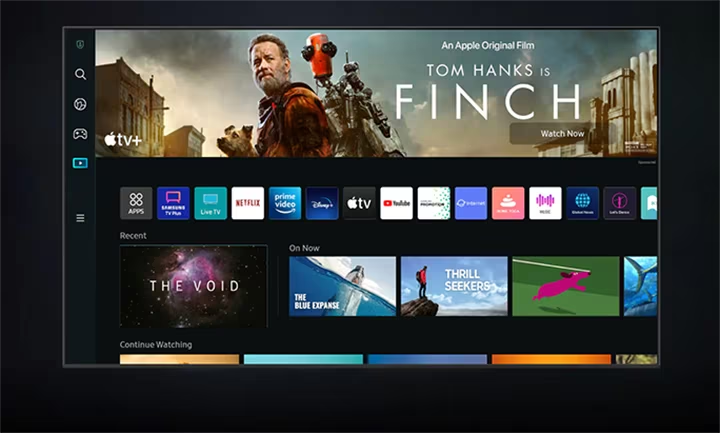
Configure your TV and browser settings
Consumer Samsung Smart TVs aren't tuned for signage use by default. You'll need to ensure Lumicast starts automatically and that the browser's navigation bar doesn't overlap the content.
Make sure Lumicast reopens on startup
Press the settings button on your remote. If that doesn't work, open Home and click the hamburger icon at the bottom of the left menu.
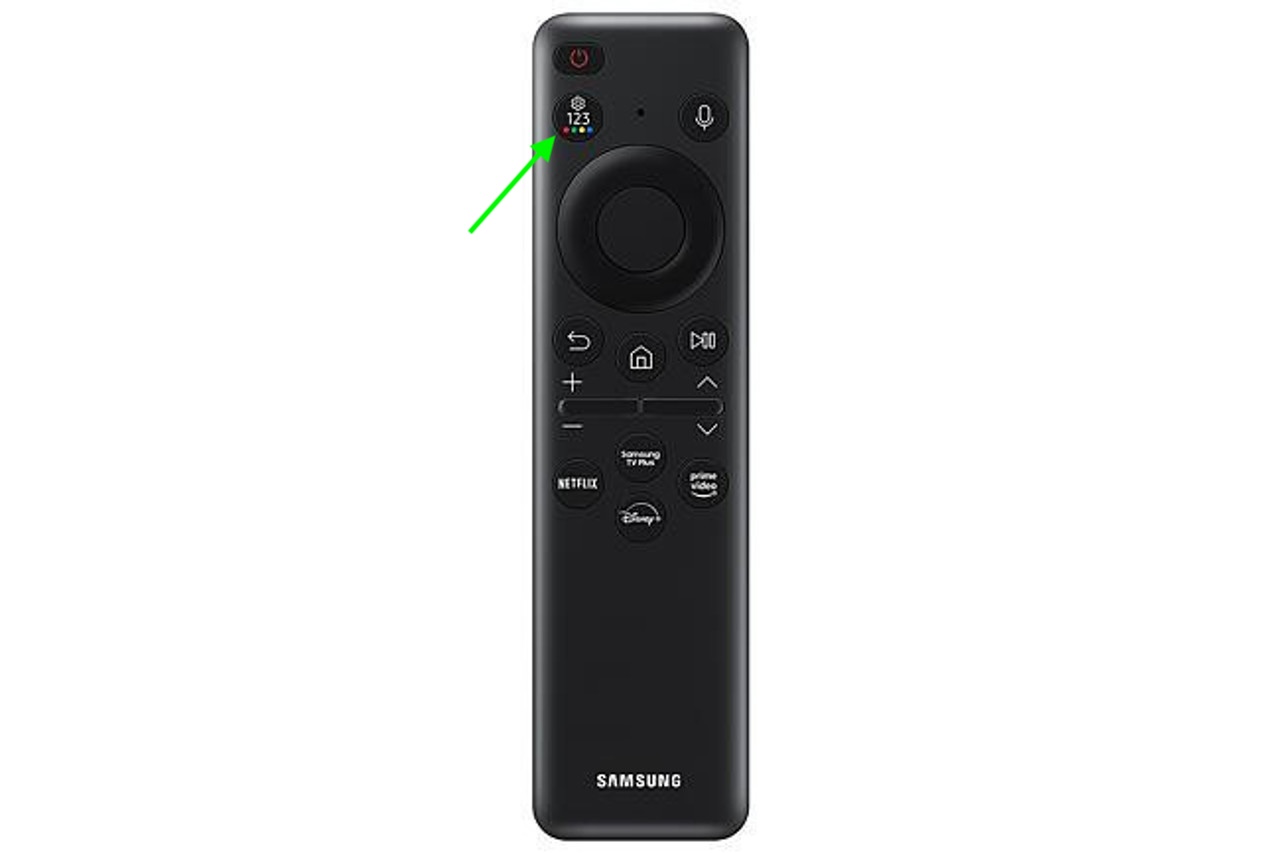
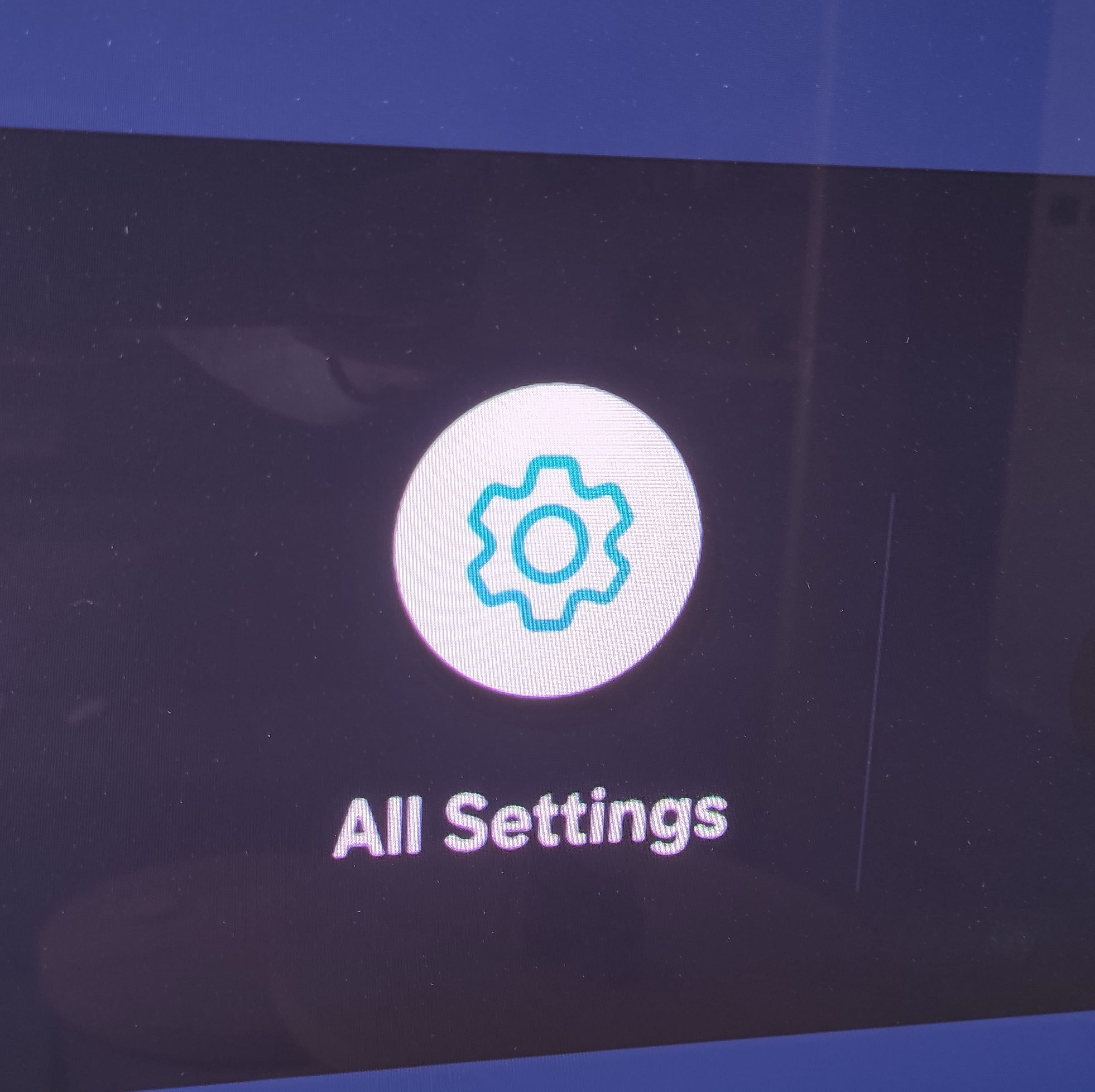
Navigate right to All Settings:
Go to General & Privacy:
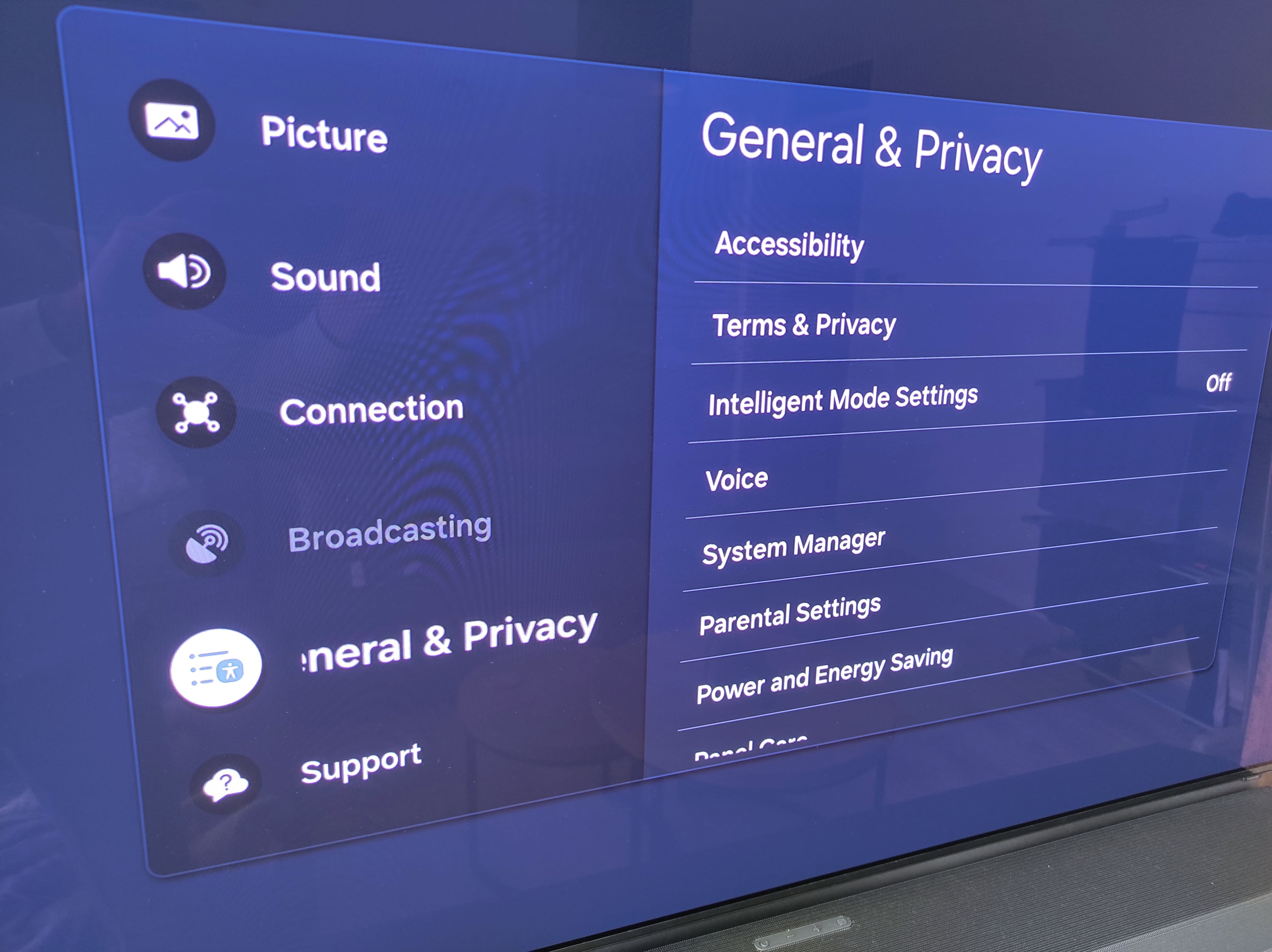
Scroll to Start Screen Options and enable Autorun Last App:
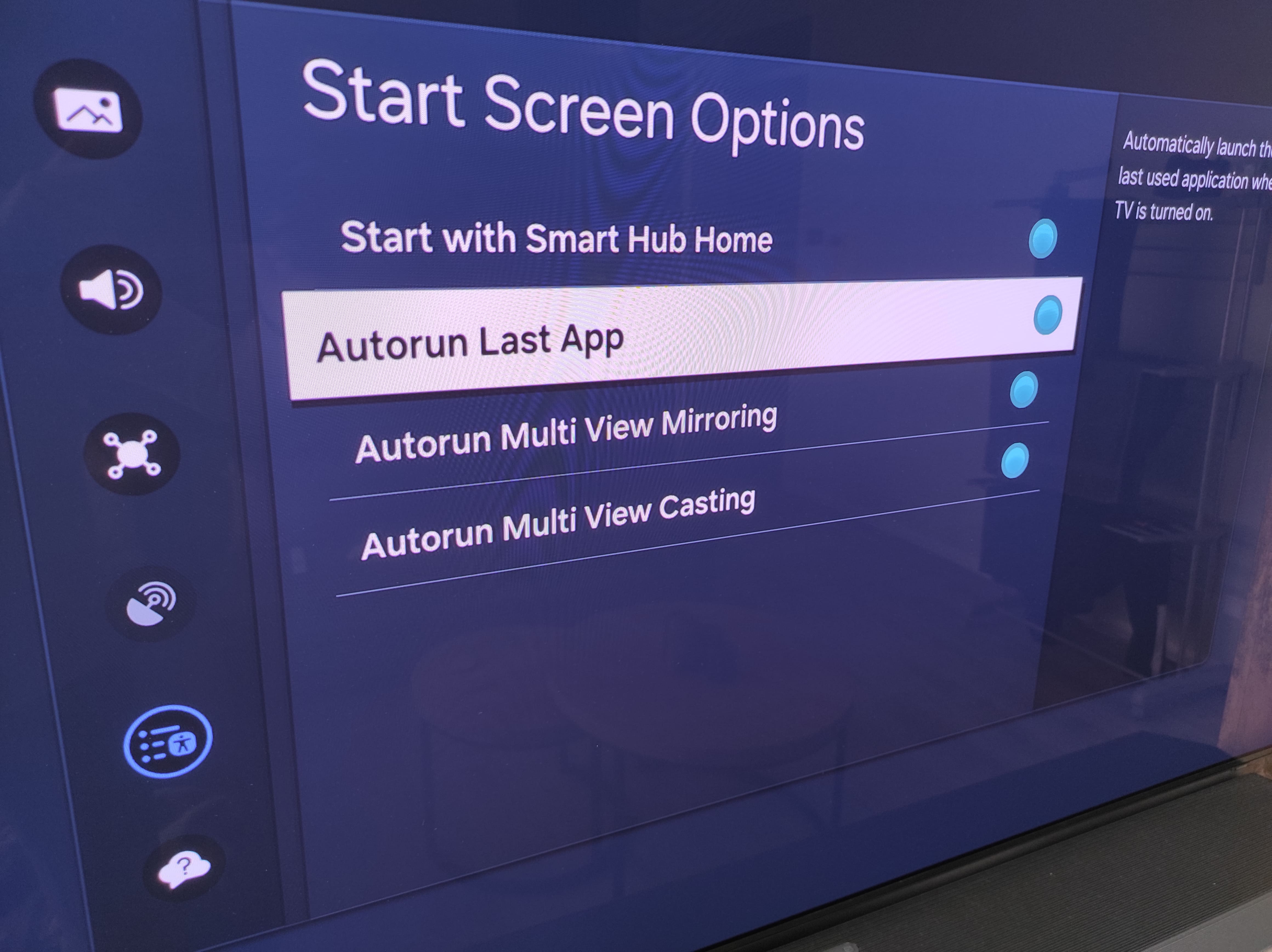
Configure the Internet Browser
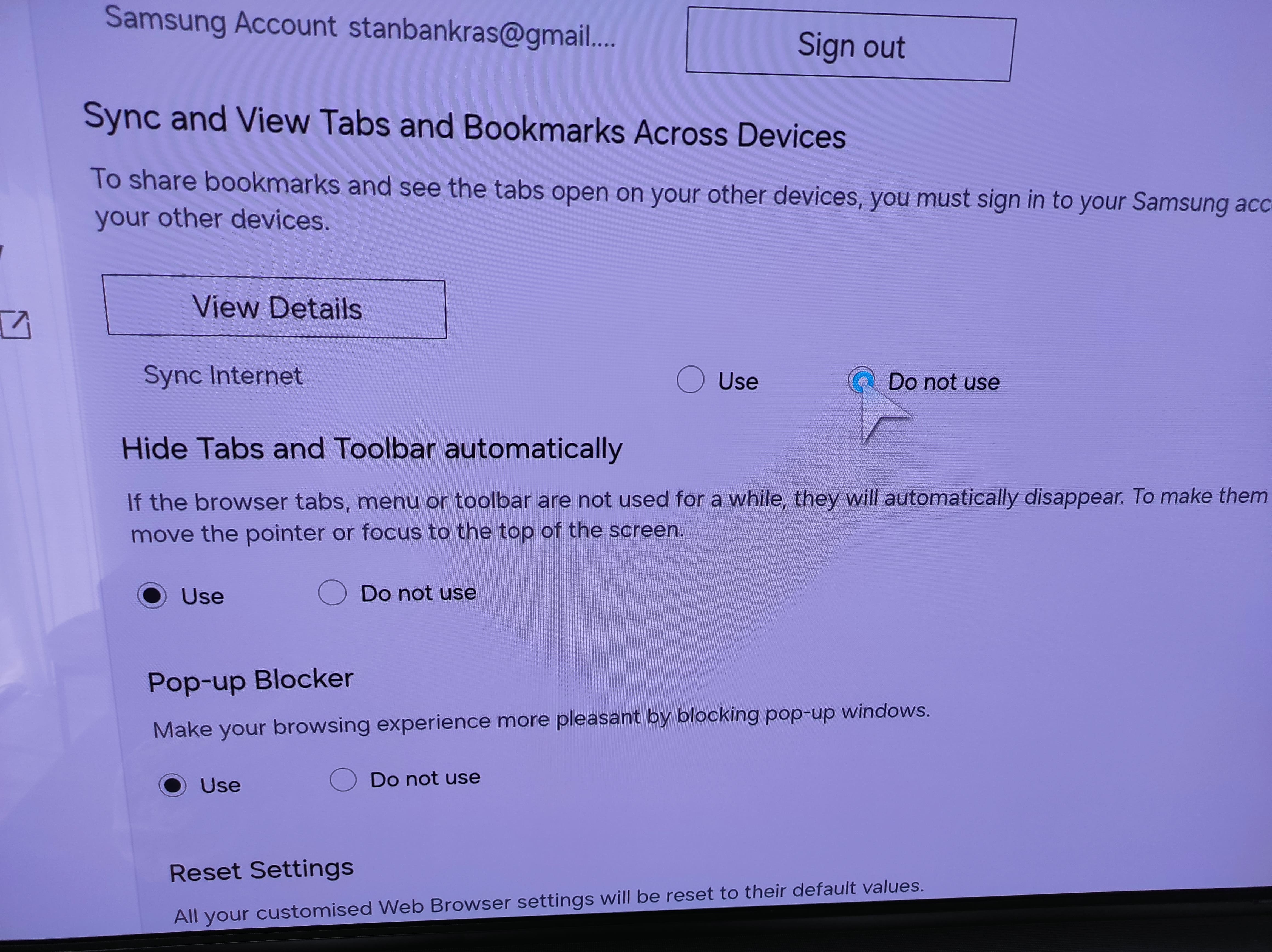
Open the built-in Internet Browser app and go to https://player.lumicast.com. The navigation bar stays visible by default — we want full-screen playback instead.
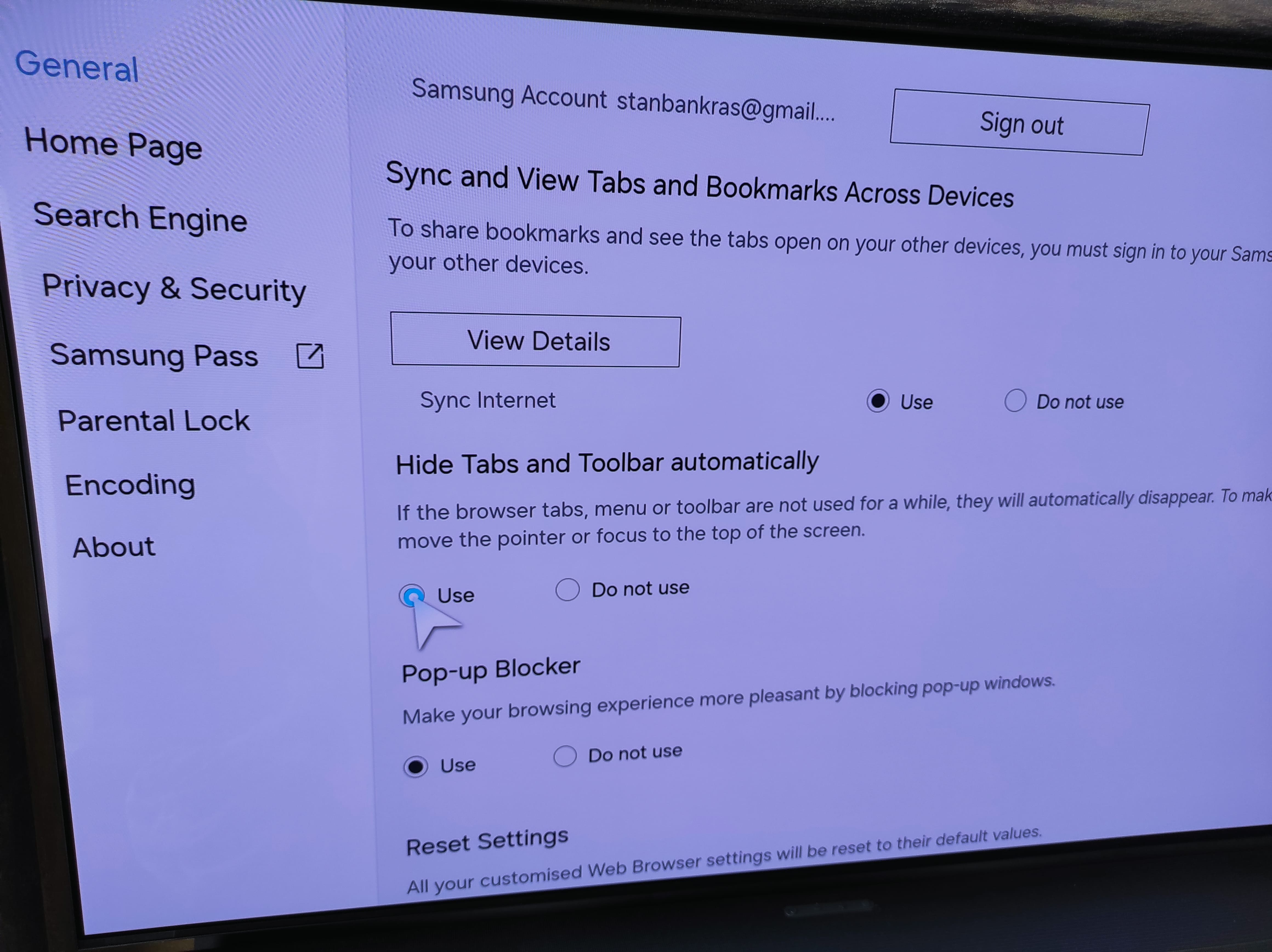
Open the hamburger icon in the top right and go to Settings:
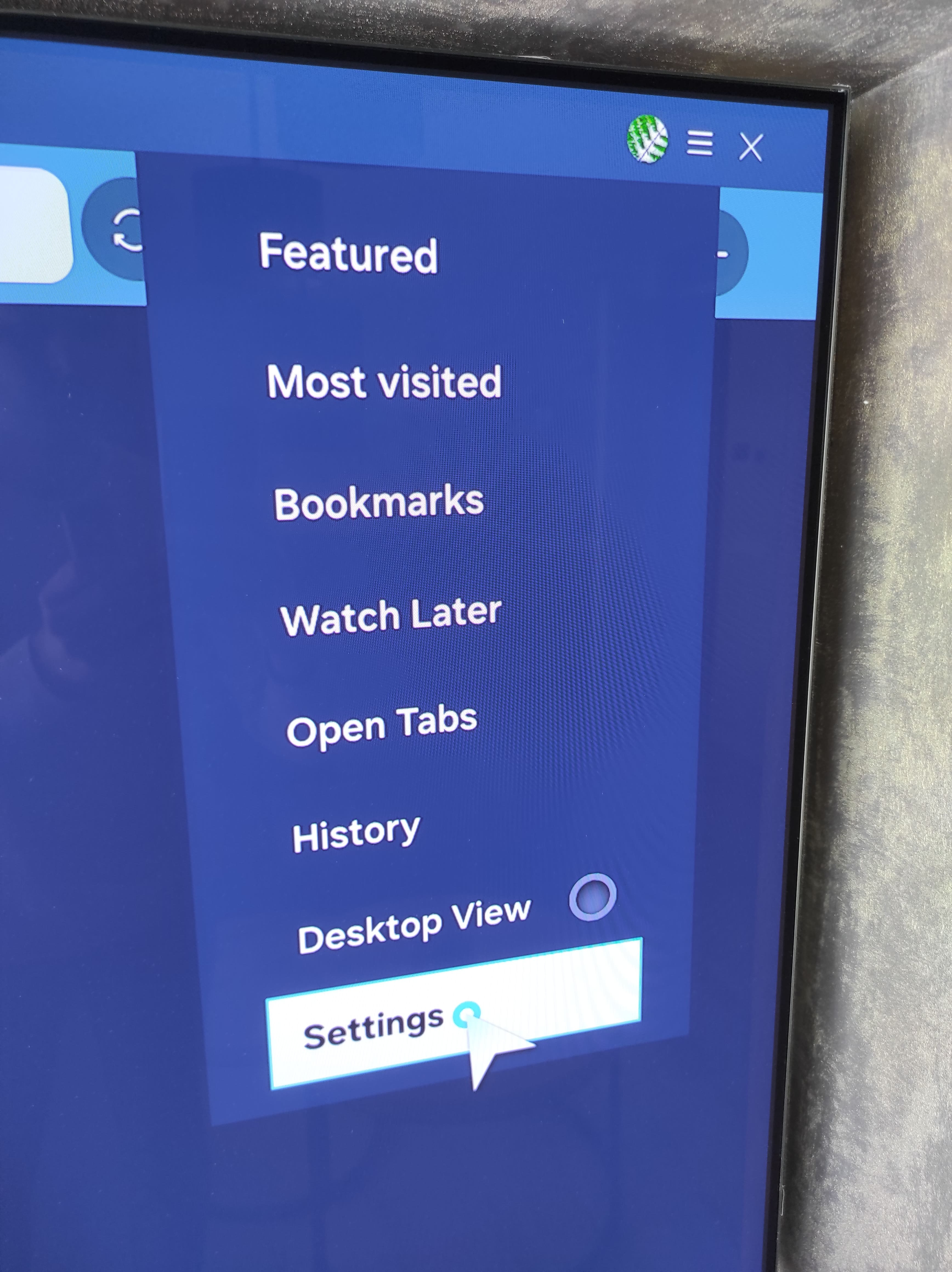
Configure the following options:
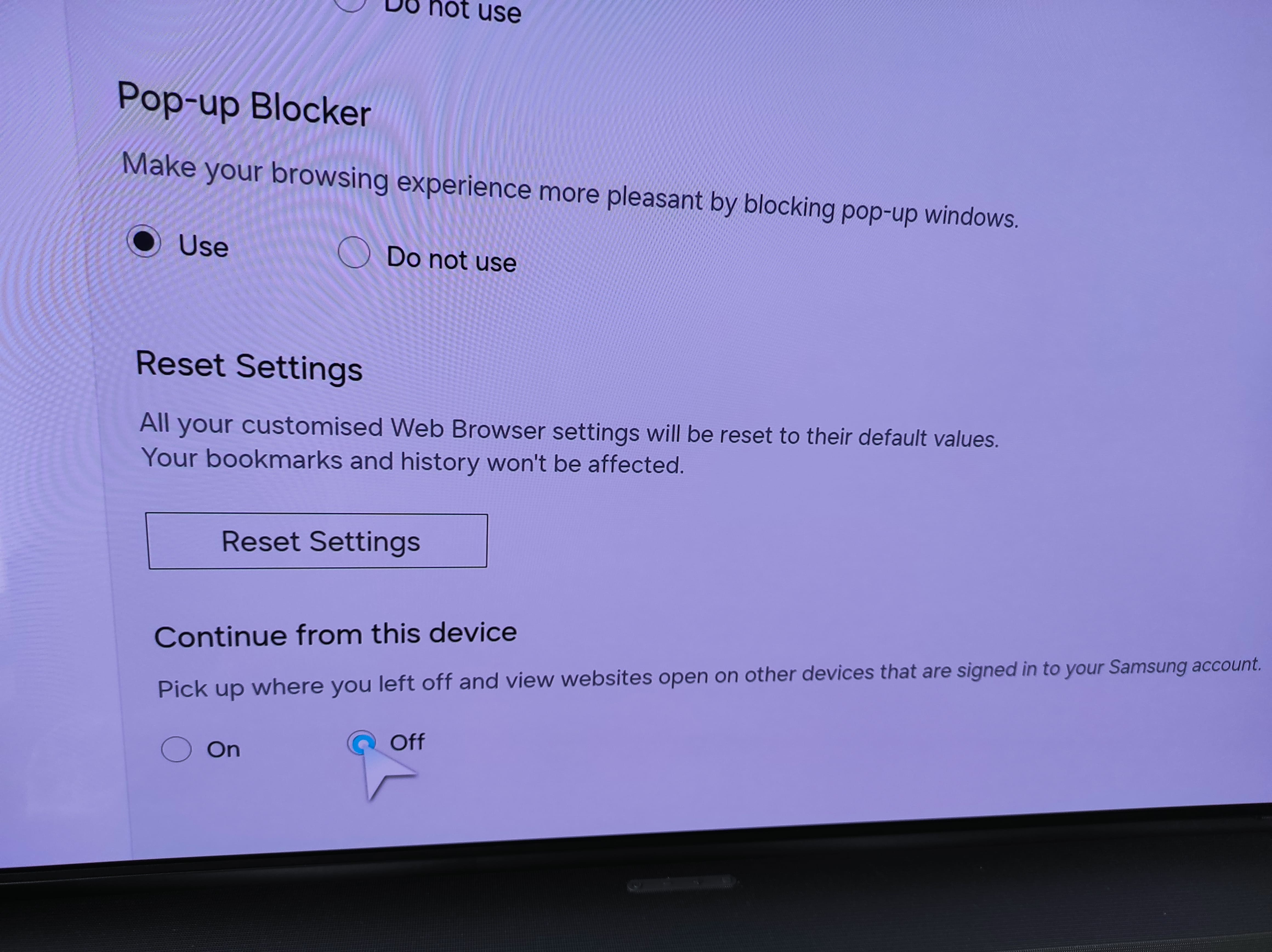
Exit settings and return to Lumicast. Verify the setup by turning the TV off and on again — Lumicast should come back full-screen.