Appearance
Webpage app
Show any website on your displays by entering its URL.
Creating a Webpage app
Go to Content > New > App and search for the Webpage app.
Click the app to start creating a new app:
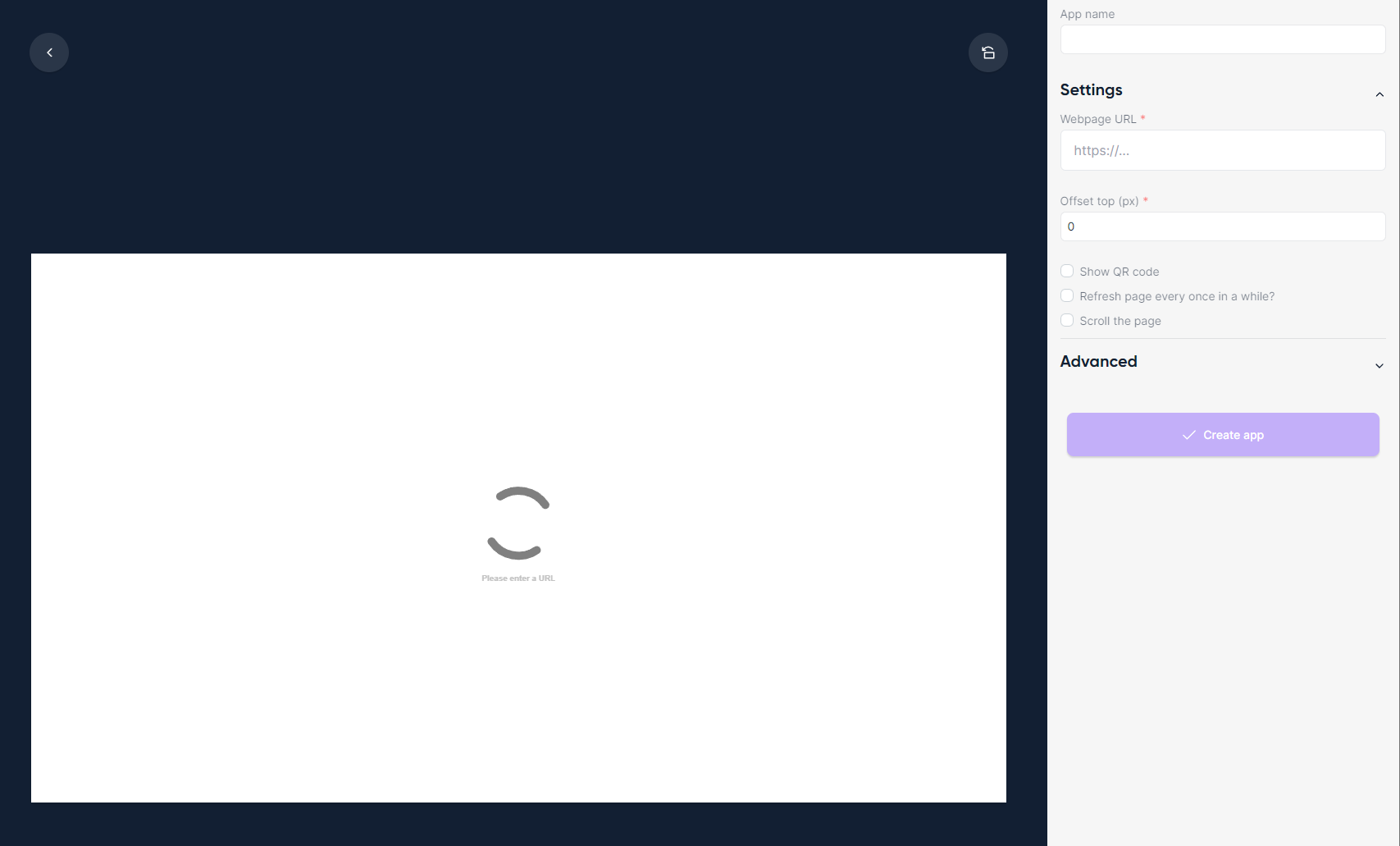
Enter an app name.
Enter the webpage URL you want to display.
Click Create app.
Why is the webpage app not loading my webpage?
- Some webpages can't be displayed inside the app editor. This doesn't always mean they won't display on your screens — for instance, locally hosted pages often work even when the editor preview doesn't.
- The website may not allow embedding. Enable the Use screenshots option in the Advanced section as a fallback.
All configuration options
| Setting | Explanation | Required |
|---|---|---|
| App name | A recognizable name shown in your content library | Yes |
| Webpage URL | URL of the webpage to show | Yes |
| Offset top (px) | Scroll the page down a fixed amount to focus on a specific section | Yes |
| Show QR code | Show a QR code to the webpage in the bottom right corner | No |
| Refresh page every once in a while? | Reload the page to pull fresh content | No |
| Refresh timeout (s) | How often to refresh. With screenshots enabled, minimum is 30 seconds | No |
| Scroll the page | Scroll the page up and down | No |
| Height in pixels to scroll | Total scroll distance | No |
| Seconds per scroll | Time to pause at each scroll position | No |
| Use screenshots instead of the actual page | Render screenshots when embedding is blocked | No |
| Wait for selector | Wait for a CSS selector to be visible before the screenshot is taken. Useful when the page isn't fully loaded yet. Only applies when Use screenshots is on | No |