

Data Sources
Data sources let your displays show live, real-world information — weather, transit schedules, social media feeds, stock prices, sports scores, or data from your own systems.
Once connected, a data source updates automatically in the background. Any page that uses it shows fresh data without you having to touch anything.
How it works
- You connect a data source (an integration or a custom API)
- Lumicast polls it on a schedule and stores the latest values
- In the Page Editor, you bind fields from the data source to text elements
- Displays show the current values and update automatically
Adding a data source
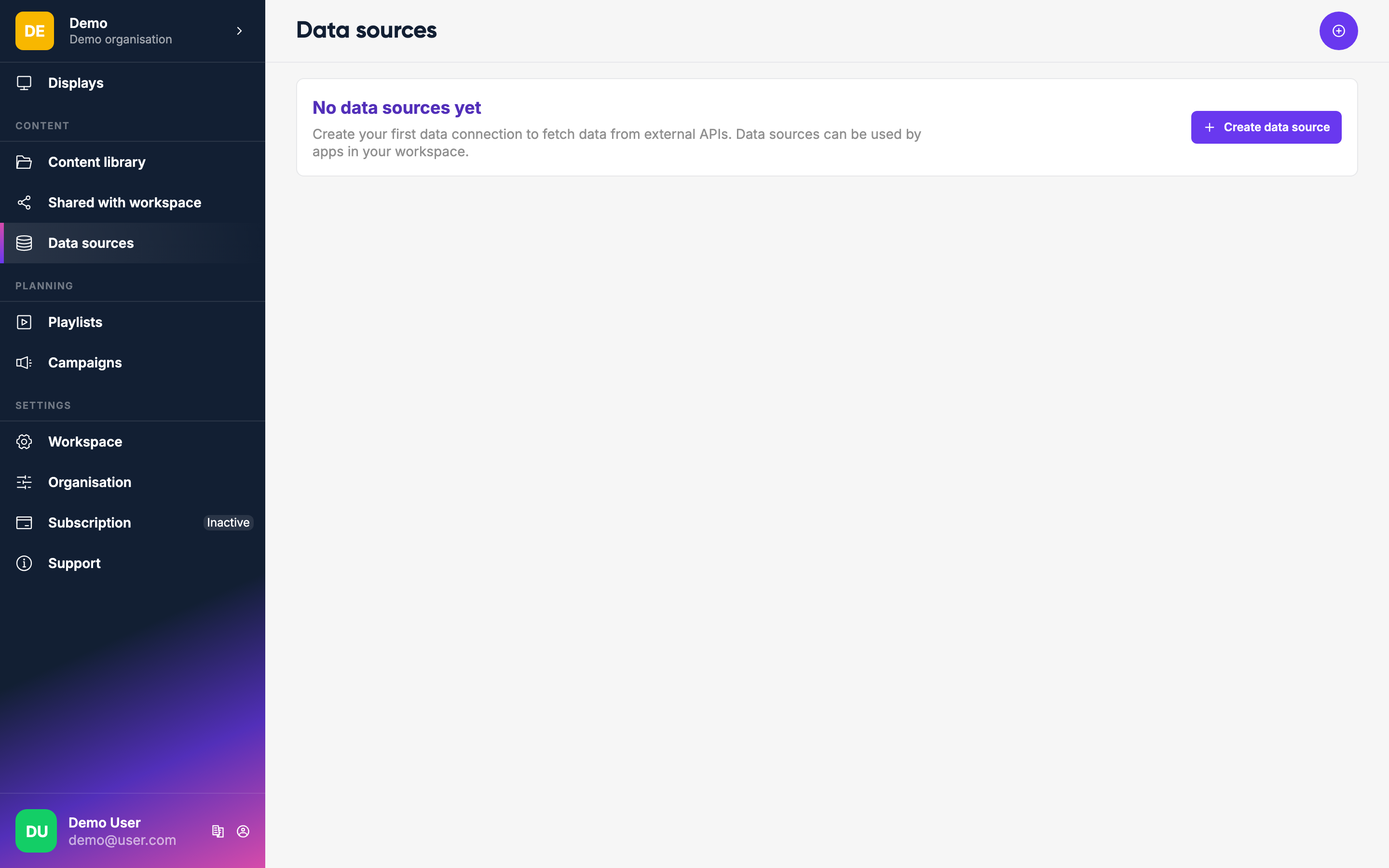
Go to Data sources and click Create data source.
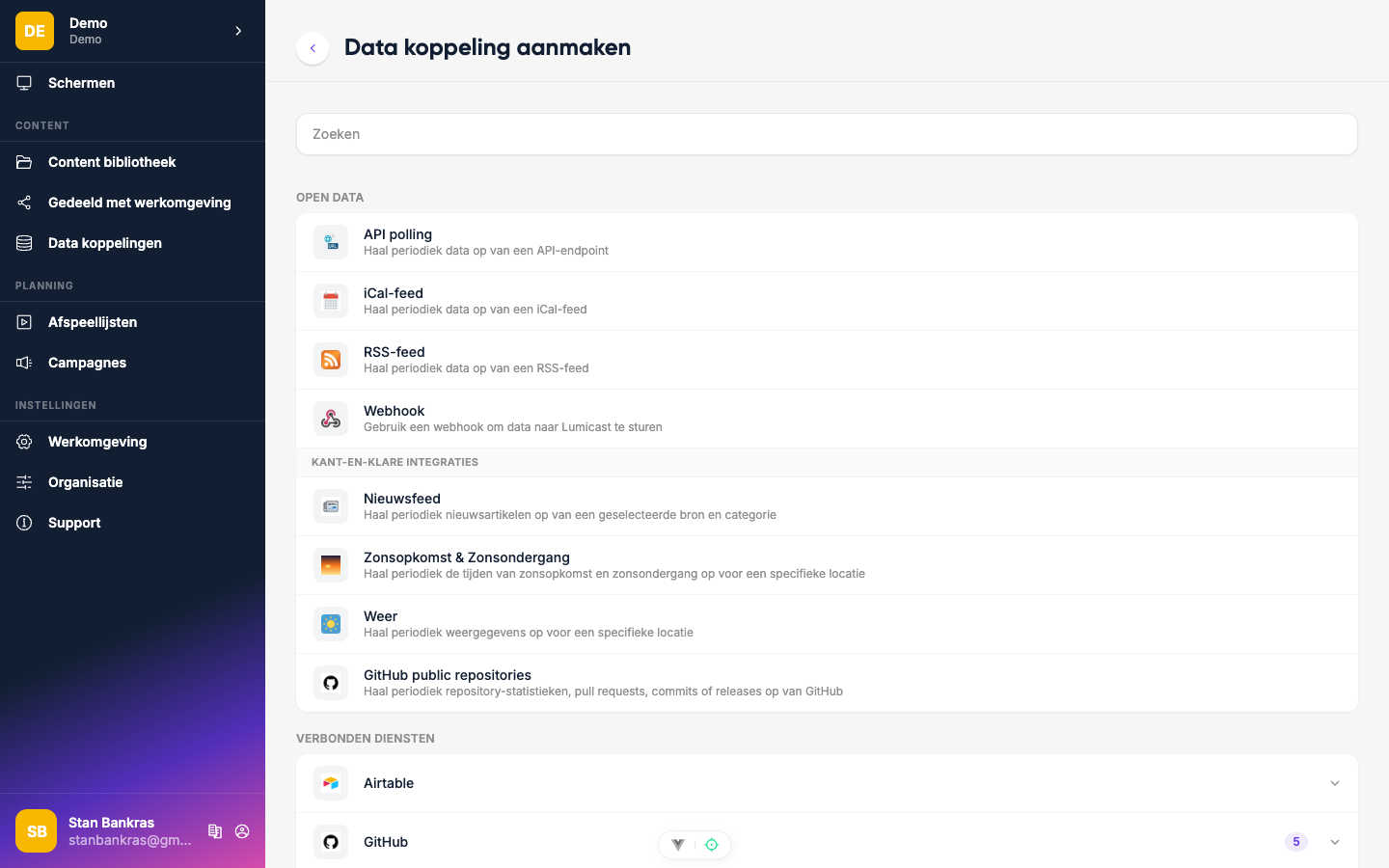
Choose how to connect. The options are grouped under Open data, Pre-built integrations and Connected services, and there's a search box at the top:
Manual entry
Define a small data structure right inside Lumicast and fill the rows by hand — no external API, webhook, or feed required. Useful for menus, team rosters, internal announcement lists, weekly room schedules, anything you'd otherwise put in a spreadsheet and re-upload.
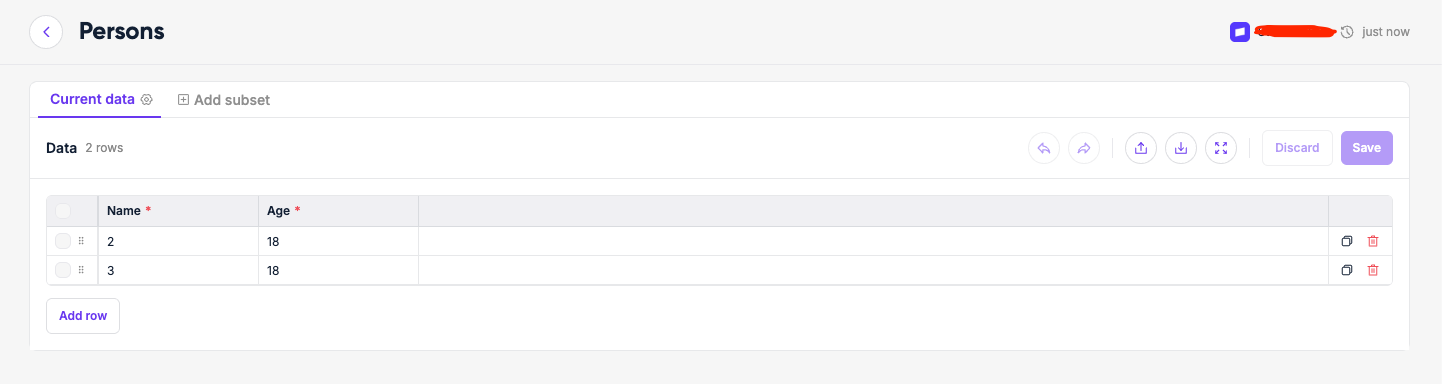
When you choose Manual entry (under Open data), you first give the data source a name and describe the columns:
| Column type | Use for |
|---|---|
| Text | Free-form strings (optionally multiline) |
| Number | Numeric values (optionally integer-only) |
| Boolean | True / false toggles |
| Date | Calendar dates (with or without a time component) |
| Time | Times of day |
| Select | One of a fixed set of options |
| URL | A link |
| Color | A colour value |
| Content | A reference to an image / video in your content library |
Each column has a label (what humans see) and a key (how chips reference the value — derived from the label, editable). Columns can be marked required to block empty values, and reordered by dragging.
Starting from a CSV
Instead of adding columns one by one, you can upload a CSV or TSV under Start from CSV when creating the data source. Lumicast infers the columns and their types from the header row and sample values. The schema is then locked while the import is queued — clear the file to edit the schema again, or save and edit afterwards.
Editing rows
After saving, open the data source to get the row editor — a spreadsheet-like grid:
- Click any cell to edit; type-aware inputs (date picker, select dropdown, colour picker, …) appear per column.
- Multi-select rows for bulk Delete, Duplicate, Fill down, Move to top / Move to bottom, or Edit column… (set the same value across many rows).
- Drag rows to reorder them; the order shown is the order rendered on displays.
- Undo / redo the last edits.
- Import CSV to add more rows at any time, or Export CSV to get the whole table back out.
- A filter box at the top narrows the visible rows.
Changes aren't saved until you click Save — the editor shows how many unsaved changes you have, and leaving the page first asks Leave without saving?. If someone else saved the same data source in the meantime, you choose between Keep my changes and Discard my changes.
Built-in integrations
Listed under Pre-built integrations — no account or connection required. Lumicast calls the service on a schedule and stores the result:
| Integration | What it provides |
|---|---|
| Weather | Current conditions and forecasts for any location |
| NS (Dutch railways) | Live departures or arrivals for any station |
| Traffic | Live traffic information (Netherlands) |
| News | Articles from a selected news source and category |
| Sunrise / Sunset | Daily sunrise and sunset times for a location |
| GitHub | Stats, pull requests, commits or releases from a public GitHub repository |
Connection-based integrations
Listed under Connected services. These require connecting an external account (OAuth sign-in or API key). You connect it while creating the data source — pick an existing connection or add a new one — and the connection is saved for the next data source. On the Data sources page, data sources are grouped under their connection; when a connection expires, click Reconnect to keep its data sources updating:
| Service | Notes |
|---|---|
| Google Sheets | Reads data from a spreadsheet |
| Google Calendar | Reads events from a calendar |
| Airtable | Reads records from a base |
| Microsoft Teams | Messages from a channel |
| Microsoft SharePoint | Lists and news, incl. whole-hub aggregation — see Connect Microsoft SharePoint |
| Jira | Issues and project data |
| Posts from an organisation page | |
| GitHub | Repository overview, pull requests, commits, releases and issues |
| GitLab.com / GitLab (Self-hosted) | Project overview, merge requests, commits, releases and issues |
| Zermelo | School timetables and announcements |
| Stripe | Payment and revenue data |
| Linear | Issue tracking data |
| Sentry | Error and performance data |
| Plausible | Analytics data |
| Microsoft Power BI | Values from a semantic model via a DAX query, see Connect Microsoft Power BI |
Generic (Custom API)
Choose API polling under Open data to connect to any HTTP endpoint. You configure:
- The URL to call
- Any headers needed, for example an authentication token
- How often to poll (e.g. every 5 minutes)
- Which fields from the JSON response to use
You can also receive data via webhook (Lumicast listens for incoming HTTP calls), subscribe to an RSS feed, or import an iCal calendar — all without OAuth.
For webhook data sources, you can optionally require signed requests so only senders who hold your signing secret can push data in. See Webhook Signing for Data Sources.
Use generic data sources for your own backend, a CRM export endpoint, or any web service that returns data.
Using data in pages
After setting up a data source, open the Page Editor and either:
- Type
/inside a text layer to drop a single live value as a chip, or - Group several layers together and bind them to an array to repeat a layout per item.
See Binding Live Data to Pages for a step-by-step guide.
Checking data source status
On the Data sources page, each data source shows when it was last updated and a status icon that tells you whether it's up to date, stale, paused or failing — hover the icon for the reason.
If a data source is failing, check that the URL and credentials are still correct. If its connection has expired, click Reconnect.