Appearance
Google Calendar app
With the Google Calendar app you can show a calendar from Google Calendar on your display.
Creating a Google Calendar app
Go to Content > New > App and search for the Google Calendar app.
Click the app to start creating a new app. You'll see:
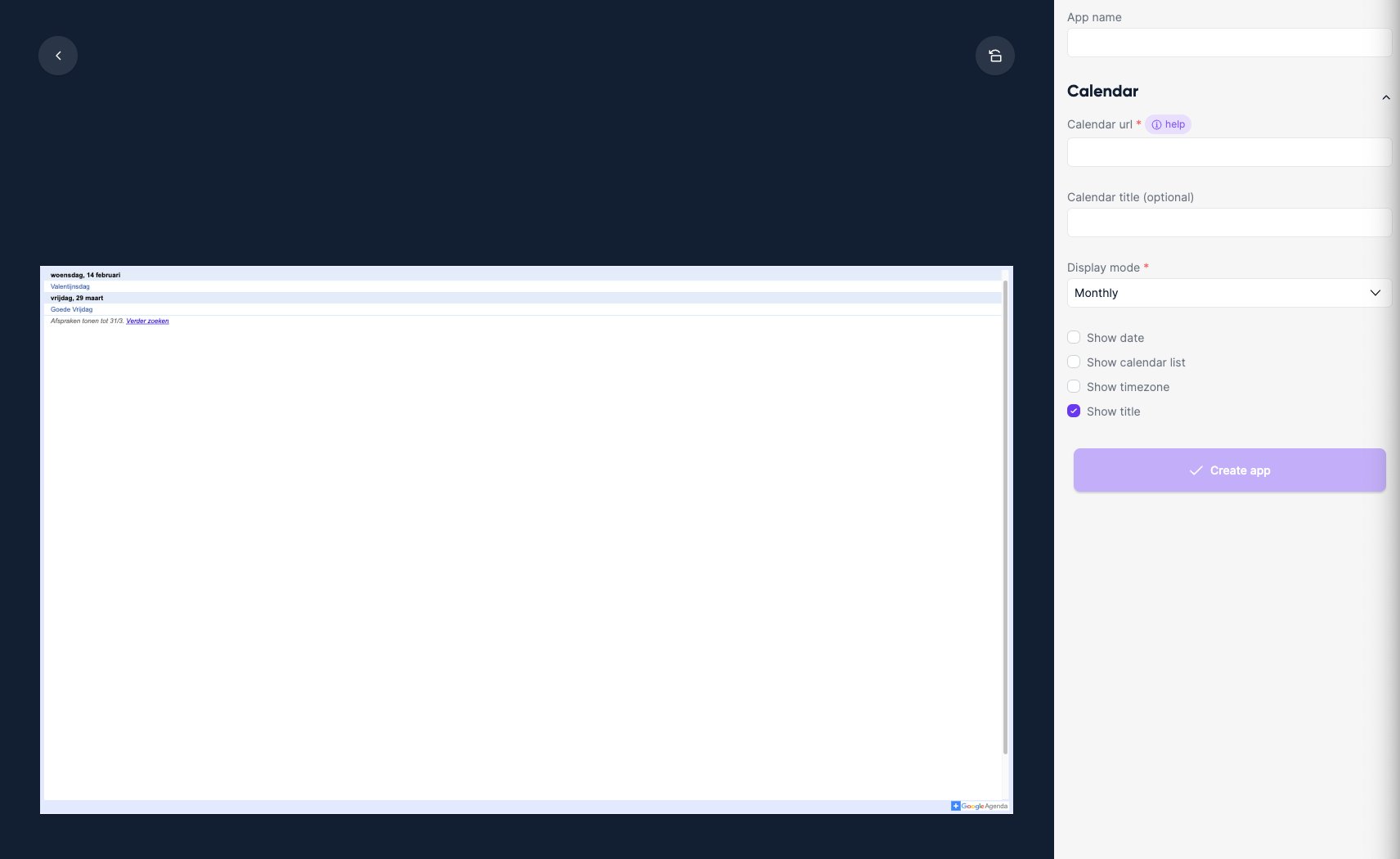
Enter an app name — anything you can recognize it by later.
Enter a Google Calendar URL (steps below).
Click Create app.
Getting the Google Calendar URL
To display a Google Calendar in Lumicast you need the public URL of that calendar.
- In Google Calendar, click the ellipsis icon of the calendar you want to share.
- Click Settings and sharing.
- Scroll to Integrate calendar.
- Copy the Public URL to this calendar.
- Paste the URL into the Google Calendar app in Lumicast.
All configuration options
| Setting | Explanation | Required |
|---|---|---|
| App name | A recognizable name shown in your content library | Yes |
| Calendar URL | The public URL to your Google Calendar | Yes |
| Title | Shown as the title when "Show title" is on. Falls back to the Google Calendar title | No |
| Display mode | Daily, weekly, monthly, or agenda | Yes |
| Show date | Whether to show the current date | No |
| Show calendar list | Show the list of calendars | No |
| Show timezone | Show the timezone of the calendar | No |
| Show title | Show a title bar at the top | No |