Appearance
Connect a Display
A display is the connection between Lumicast and a physical screen. Once paired, Lumicast controls what it shows — from anywhere.
Step 1 — Get the player running on your screen
You need the Lumicast player running on the physical device. There are two ways to do this:
Browser (quickest) — Open player.lumicast.com in any browser on the device. A pairing code appears immediately. No installation needed.
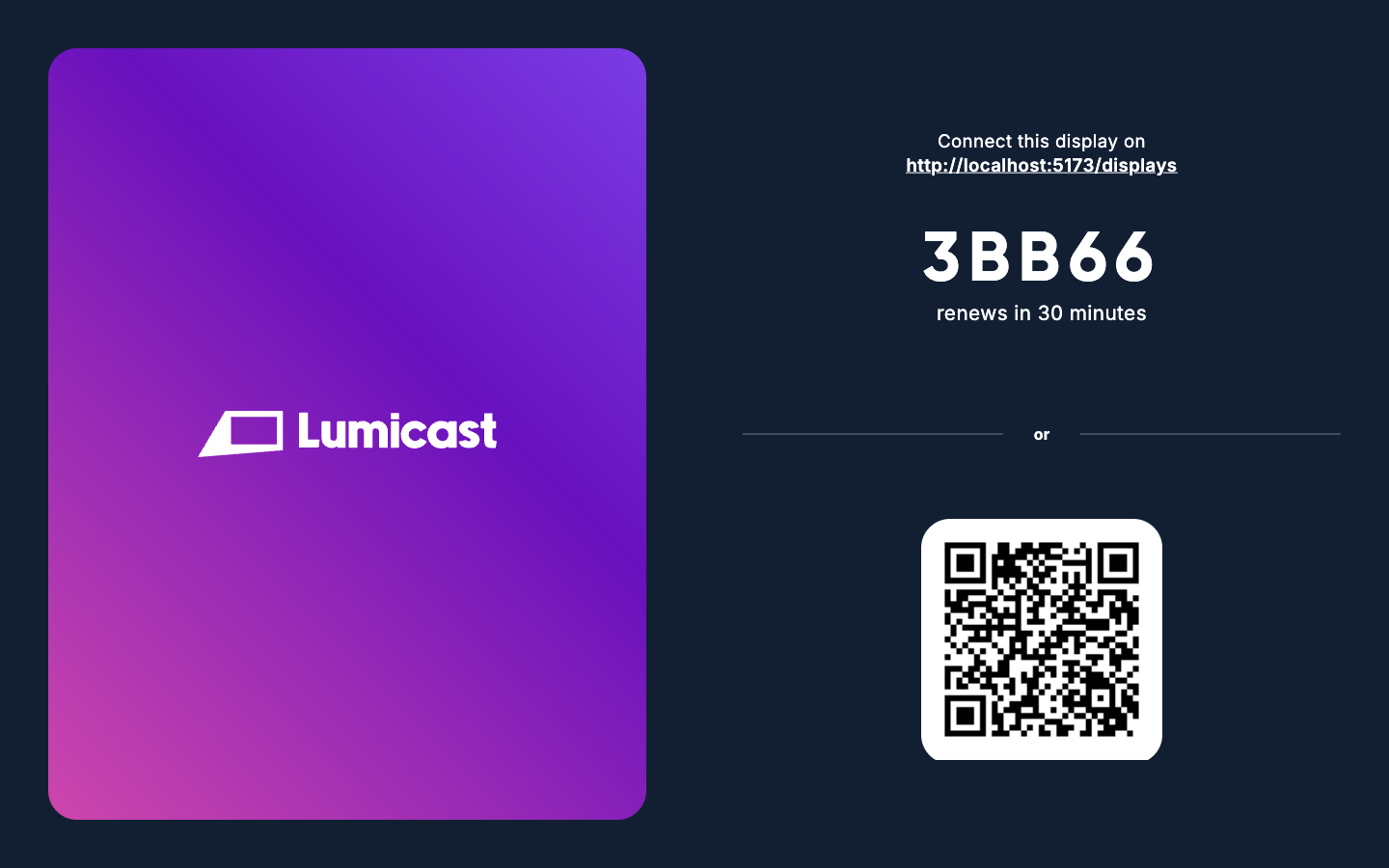
Native app (recommended for permanent installs) — Download and install the dedicated player for your hardware. Native apps start automatically when the device powers on and support remote management. See the Player overview for supported platforms and download links.
Step 2 — Connect the display in Lumicast
In Lumicast, go to Displays and click the + button, then Connect display.
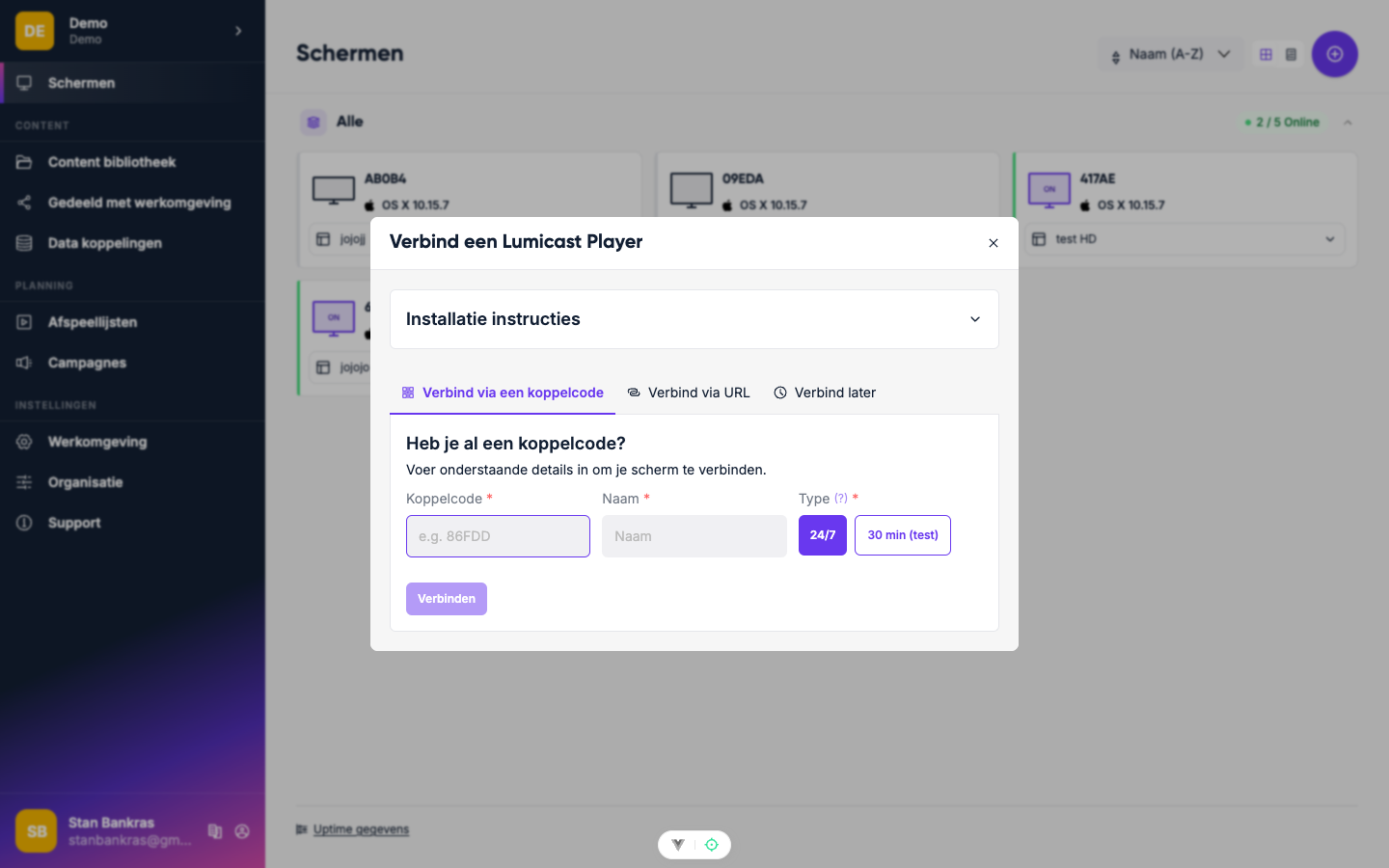
Fill in:
- Name — something you'll recognise it by (e.g. "Reception" or "Floor 2 Left")
- Pairing code — the code shown on the screen
- Type — Test (free, active for 30 min) or Live (billed, runs 24/7)
Click Connect. The display goes online immediately.
Step 3 — Assign content
The screen shows nothing until you assign content. Click on the display's current content area and click Set content. A picker opens — select a playlist, app, or media item and press Choose.
Troubleshooting
Screen shows offline — check that the player is open and the device has internet access.
Pairing code not working — codes expire after a few minutes. Refresh the player page to generate a new one.
Display not appearing in the list — make sure you're in the correct workspace.